A complete walkthrough of every module in our Manufacturing Execution System. Real screenshots, real data, real workflows — so you can see exactly what your production floor would look like before we build it.
Factories running a connected MES typically recover 5–15% in lost production capacity within the first quarter. This guide shows you exactly how each module contributes to that result — and how to use it to get there.
ADAM MES is a full-featured manufacturing execution system designed for discrete and process manufacturing. It bridges the gap between your ERP/business systems and the shop floor — providing real-time visibility into production, quality, maintenance, and traceability.
The platform follows the ISA-95 standard for enterprise-to-manufacturing integration and implements FDA 21 CFR Part 11 compliance for regulated industries. Built on an MQTT-first architecture, every data point flows in real time — no batch updates, no polling, no stale dashboards.
This guide walks you through every module with annotated screenshots. For each feature, you'll see the real business problem it solves, step-by-step instructions on how to use it, and the measurable impact it delivers to your bottom line. You can also explore the live demo yourself:
Demo Credentials
Username
admin
Password
Admin123
This is a demo environment with simulated production data. Feel free to create work orders, run jobs, and explore — the data resets periodically.
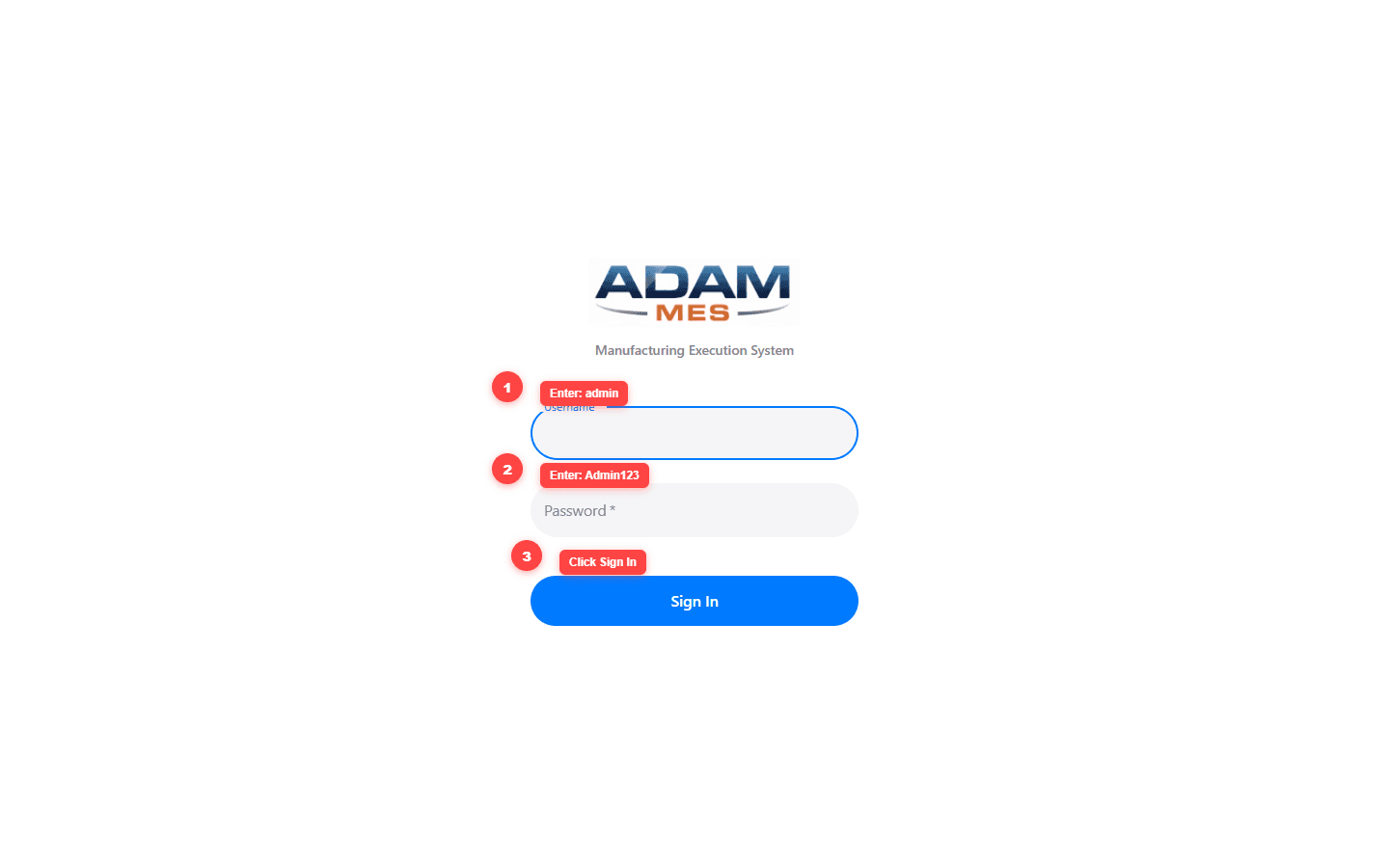
The login page with step-by-step annotations. Enter the demo credentials and click Sign In.
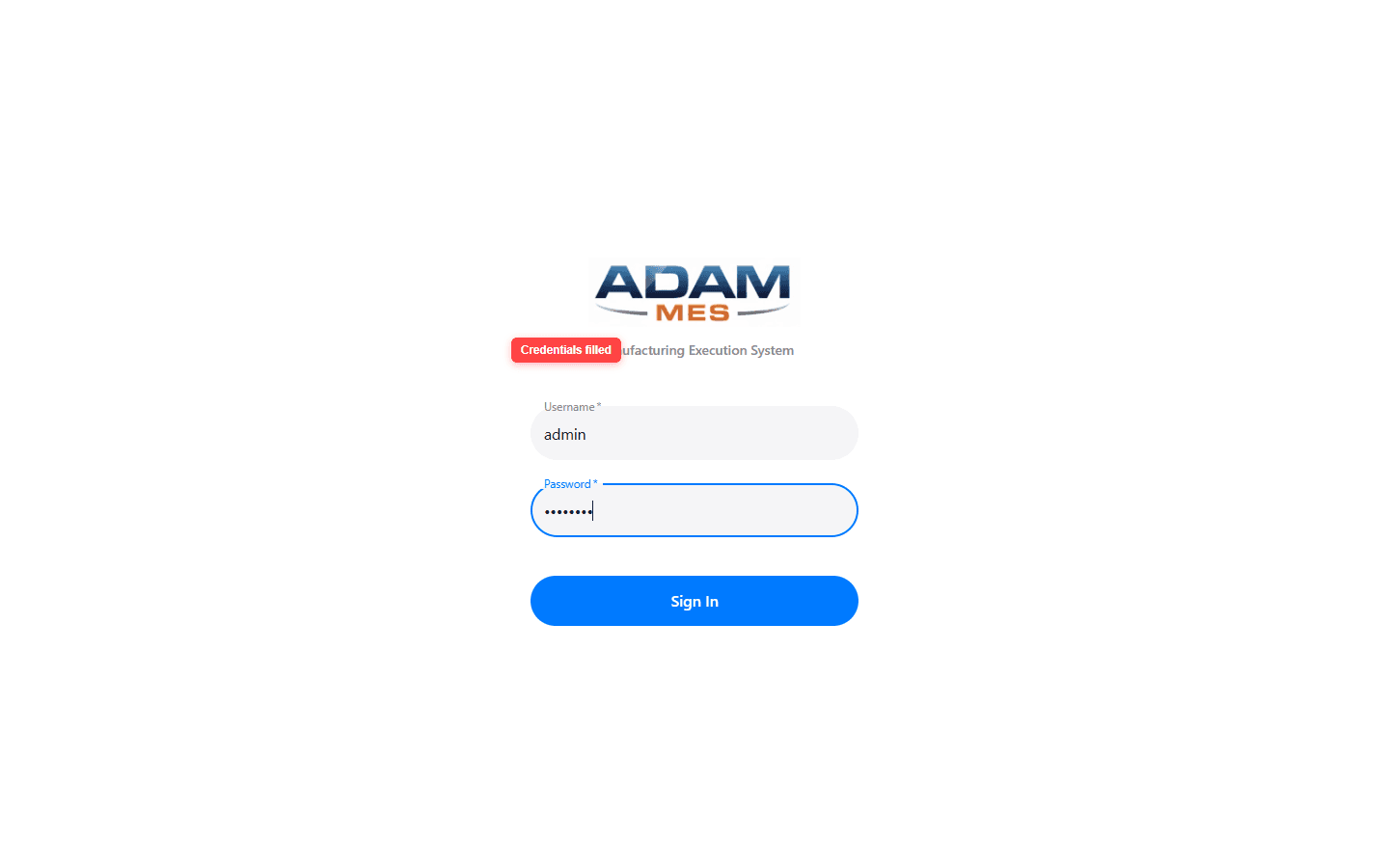
Credentials entered and ready to sign in.
1
Real-Time Production Dashboard
The problem: Most production managers start their day blind. They walk the floor, ask supervisors for updates, chase spreadsheet reports from the previous shift, and piece together a picture that's already hours old. By the time they spot an issue, the damage is done — missed targets, quality escapes, unplanned overtime. Every hour of undetected downtime is direct revenue lost.
The solution: The ADAM MES Dashboard is a live command center that updates every second via MQTT. No refreshing, no waiting — the moment a machine stops or a quality check fails, you see it. Early detection means you fix problems in minutes, not hours.
1–2 hrs/day
Saved on manual status checks and floor walks
Up to 20%
Faster response to unplanned downtime
Real-time
Data replaces end-of-shift guesswork
How to use the Dashboard
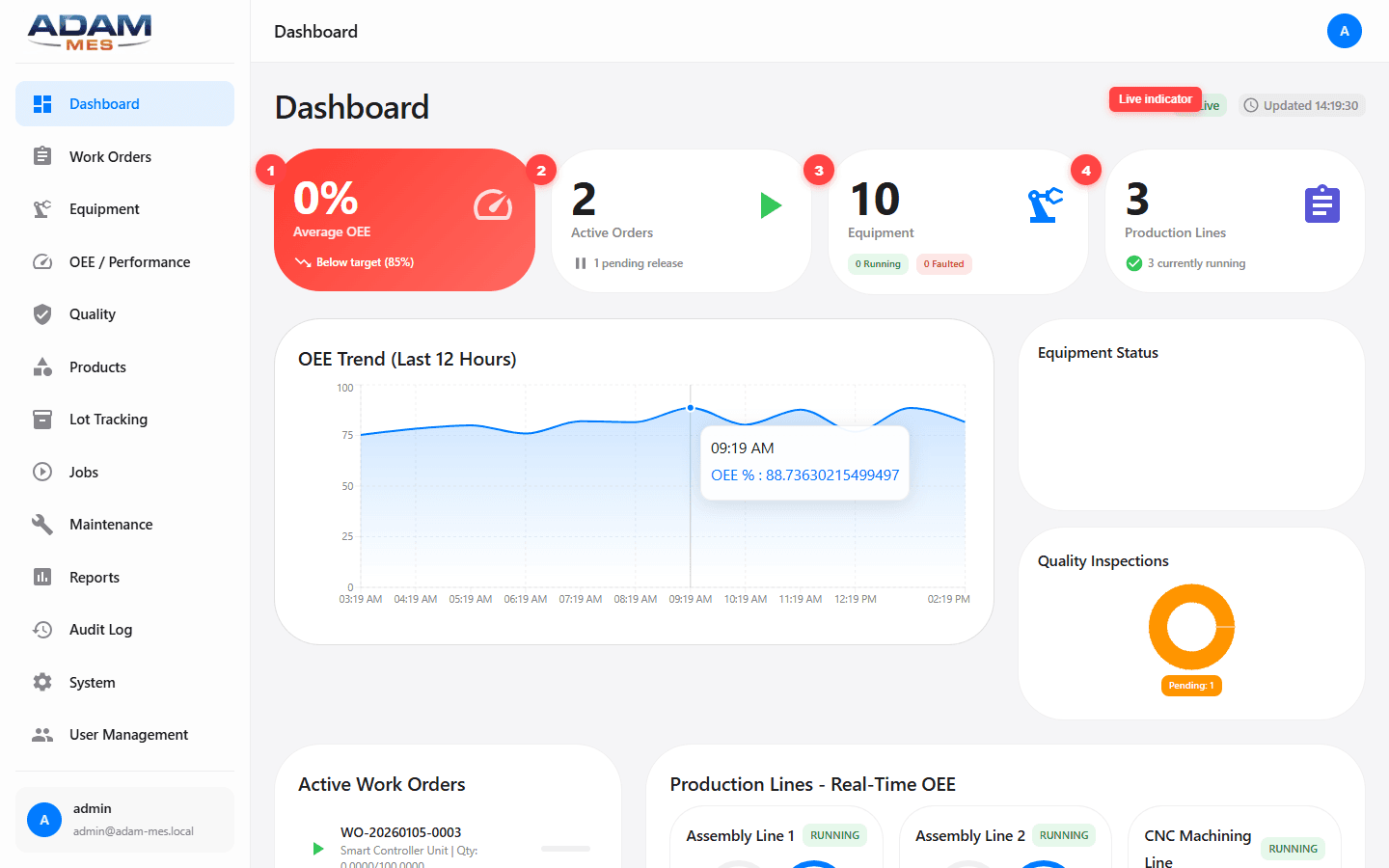
After logging in, the Dashboard loads automatically. Start your shift here every morning. Glance at the four KPI cards at the top — if the Average OEE card is red (below 85% target), you already know production needs attention. Check Active Orders to see what's running and what's pending release. The Equipment card shows how many machines are faulted so you can dispatch maintenance before the shift fully starts.
OEE Trend Chart
Hover over the interactive line chart to see exact OEE values at any point in the last 12 hours. This is where patterns reveal themselves: a gradual decline means a machine is degrading; a sudden drop after a changeover means operators need better setup procedures. Each trend you catch here translates directly to recovered output.
Active Work Orders & Production Lines
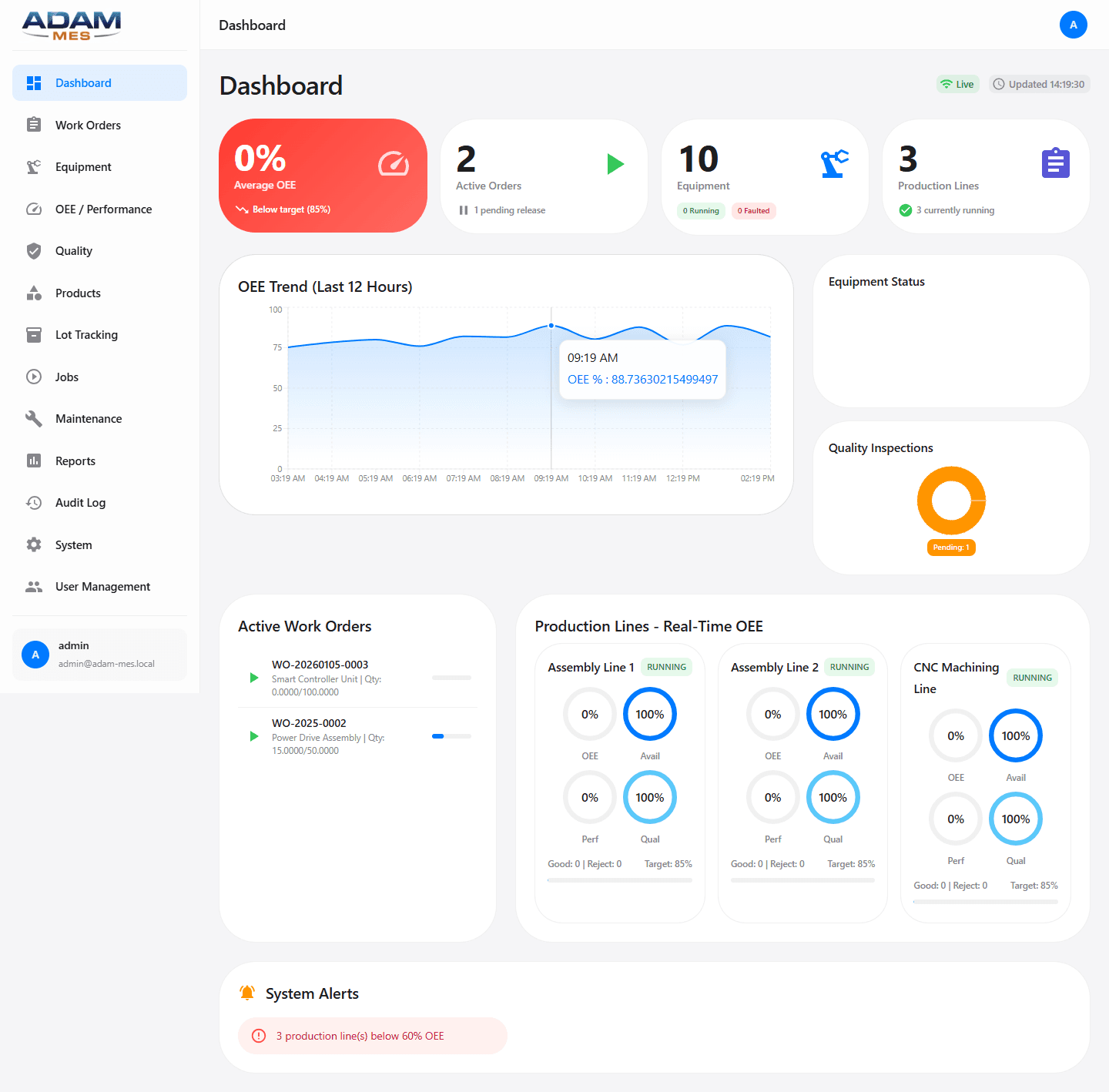
Scroll down to see which work orders are running and each production line's real-time OEE gauge. System Alerts surface issues requiring immediate attention. Use this section to prioritize your next action — the line with the lowest OEE is where your intervention generates the most value.
Who this helps
Plant managers, production supervisors, and operations teams who need instant visibility without walking the floor or waiting for shift reports. If you currently spend the first 30–60 minutes of each shift gathering status, this replaces that entirely.
The live dashboard with annotated KPI cards (1-4) and real-time indicator. Data updates every second via MQTT.
Full dashboard view: Active Work Orders, Production Lines with real-time OEE gauges, and System Alerts.
2
Work Order Management
The problem: Production planning lives in the ERP. Execution lives on the floor. The gap between these two creates late orders, priority confusion, and supervisors managing production from memory or whiteboards. When a customer calls asking about their order, nobody has a real answer. Late deliveries erode customer trust and often come with contractual penalties.
The solution: Work Orders in ADAM MES track the full lifecycle from creation to completion. Every order has a status, priority, assigned production line, target quantity, and real-time progress — visible to everyone who needs it. When a customer calls, you give a precise answer in seconds, not hours.
95%+
On-time delivery achievable with live priority tracking
Zero
Lost orders or priority mix-ups between shifts
< 10 sec
To answer 'Where is my order?' for any customer
How to create a Work Order
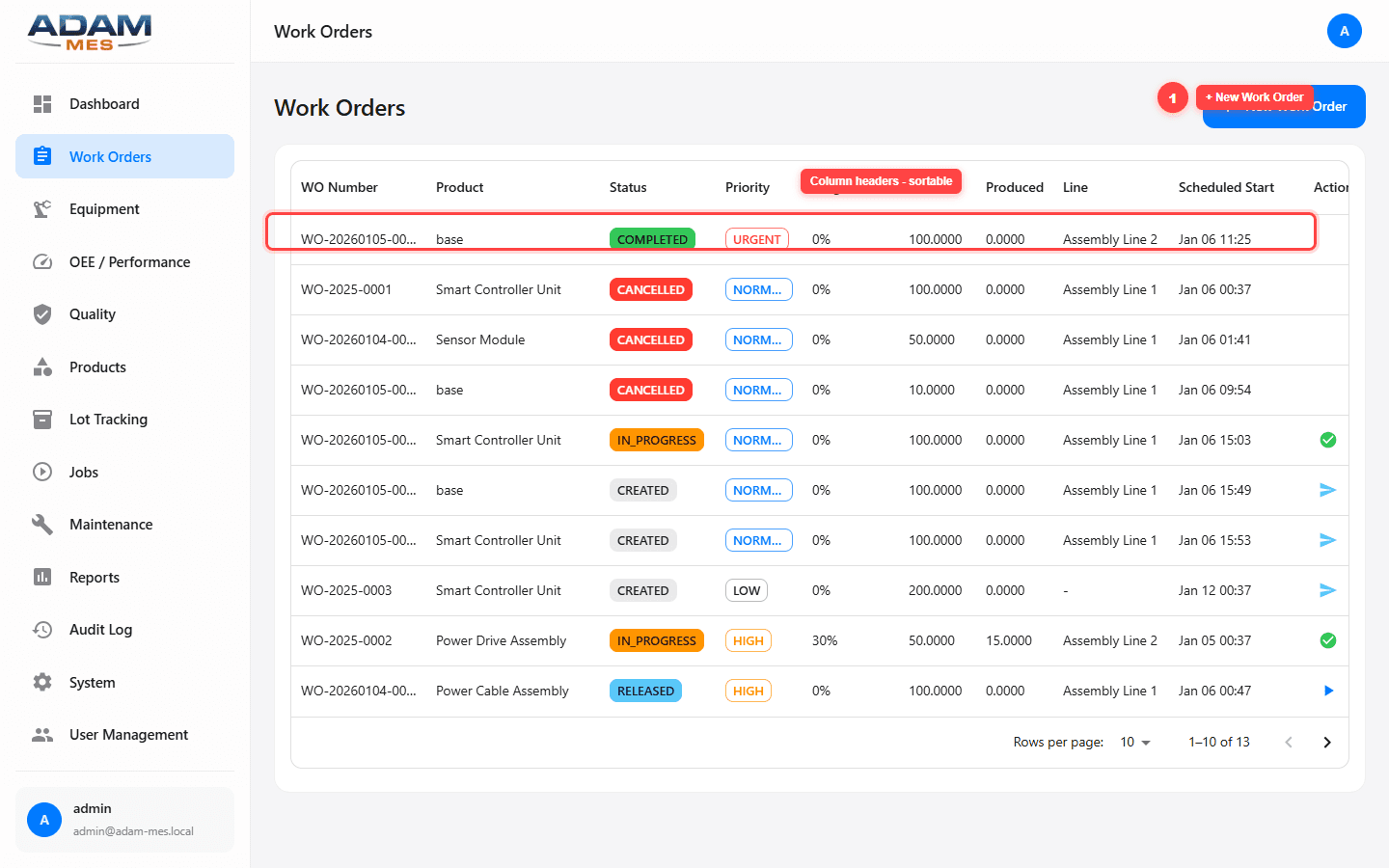
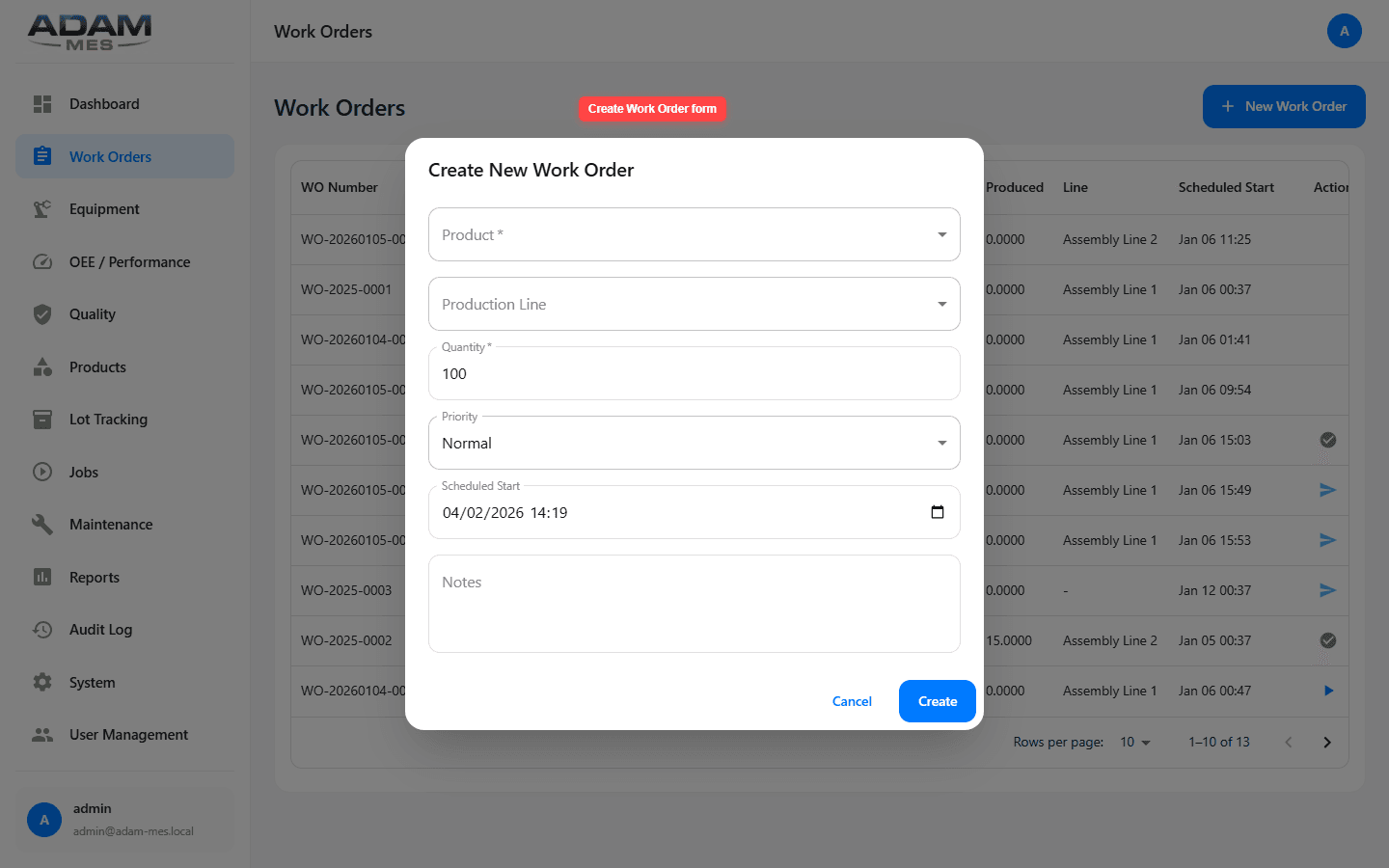
Navigate to Work Orders in the sidebar. Click + New Work Order (top right). Select the product from the dropdown, choose which production line should produce it, enter the target quantity, and set the priority (Urgent, High, Normal, Low). Add a scheduled start date and optional notes. Click Create. The system auto-generates a unique WO number (e.g., WO-20260105-003) and the order appears in the table as CREATED.
How to track and manage orders
The table shows every order with color-coded status badges: CREATED → RELEASED → IN_PROGRESS → COMPLETED (or CANCELLED). Use the action buttons on the right to release, start, or cancel orders directly. Click column headers to sort by Priority, Status, or Scheduled Start — this lets you instantly see what's most urgent. The Progress column shows real-time produced vs. target quantities, so you know exactly how close each order is to completion.
Practical example
Your largest customer calls asking when their 500-unit order will ship. Open Work Orders, search by product name, and you immediately see the order is IN_PROGRESS with 380 of 500 units produced on Assembly Line 2. You can give a precise delivery estimate on the phone, in real time. This kind of responsiveness is what keeps customers coming back.
Who this helps
Production planners who need to schedule and track orders. Supervisors who need to know what to run next. Customer service teams who can now answer "Where is my order?" instantly — building customer confidence and protecting repeat business.
Work Orders overview with color-coded statuses, priorities, and action controls.
The Create Work Order form: Product, Production Line, Quantity, Priority, Scheduled Start, and Notes.
3
Equipment Management
The problem: Most factories track equipment in spreadsheets or not at all. When a machine goes down, nobody knows its maintenance history. When planning capacity, nobody knows the real state of the equipment fleet. This blind spot leads to over-purchasing new equipment when existing machines could be better utilized, or missing critical maintenance that causes expensive breakdowns.
The solution: Equipment Management gives you a complete digital registry of every machine, sensor, and device on your floor — organized in an ISA-95 compliant hierarchy. Knowing the true state of your equipment means you invest in the right places and avoid surprises.
10–30%
Reduction in unplanned equipment downtime
Full
ISA-95 compliance for enterprise integration
One source
For all equipment decisions and history
How to explore your equipment
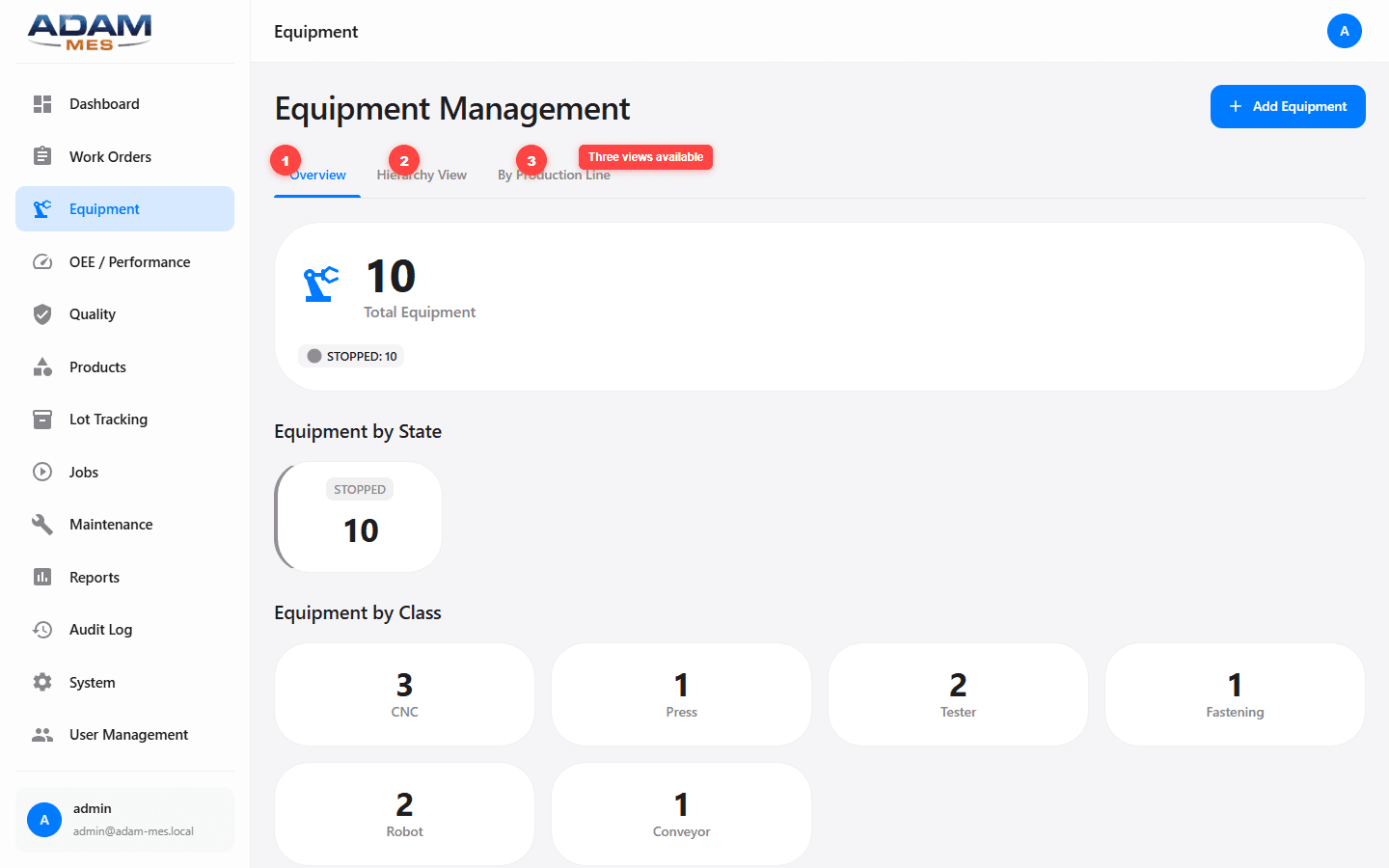
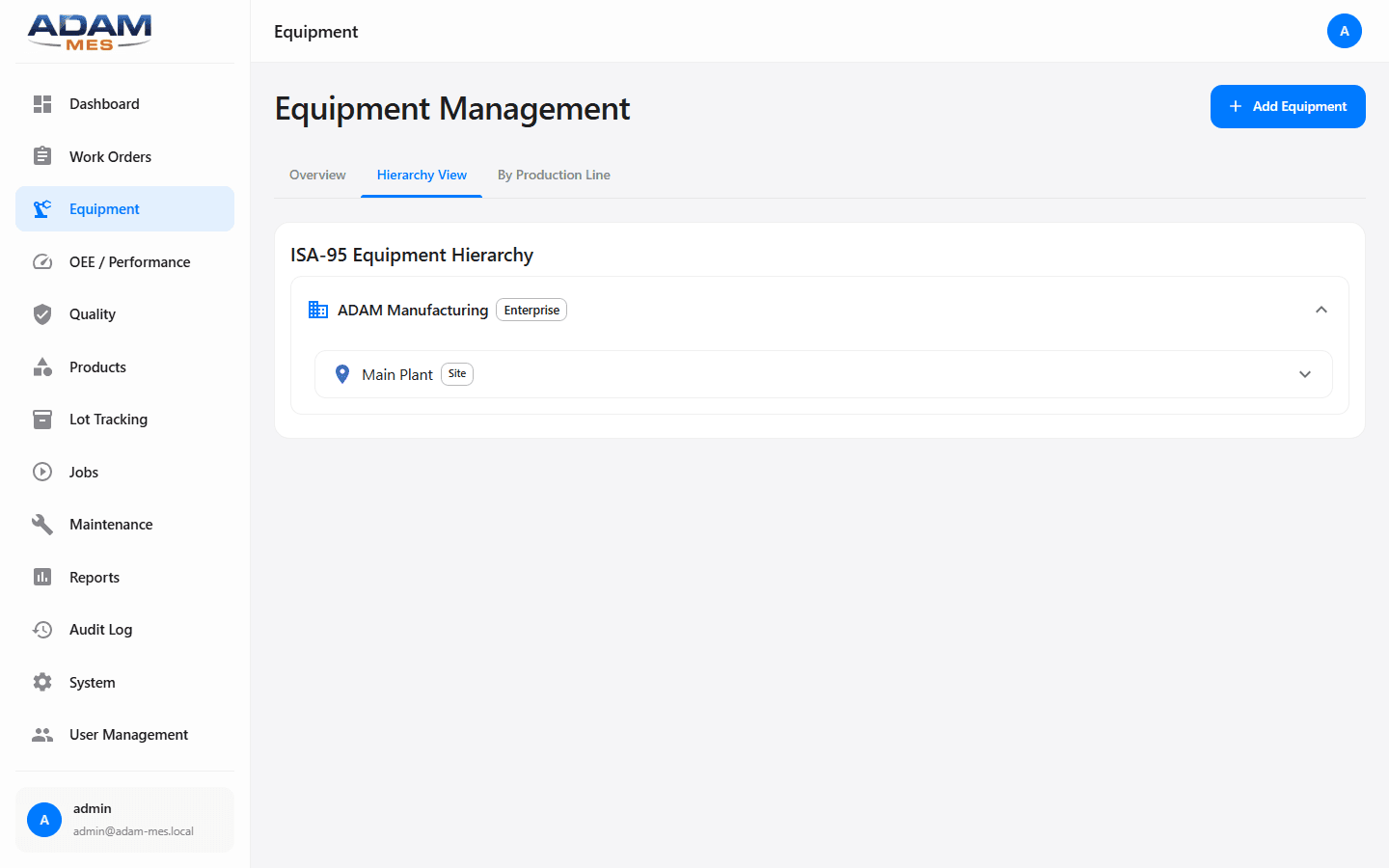
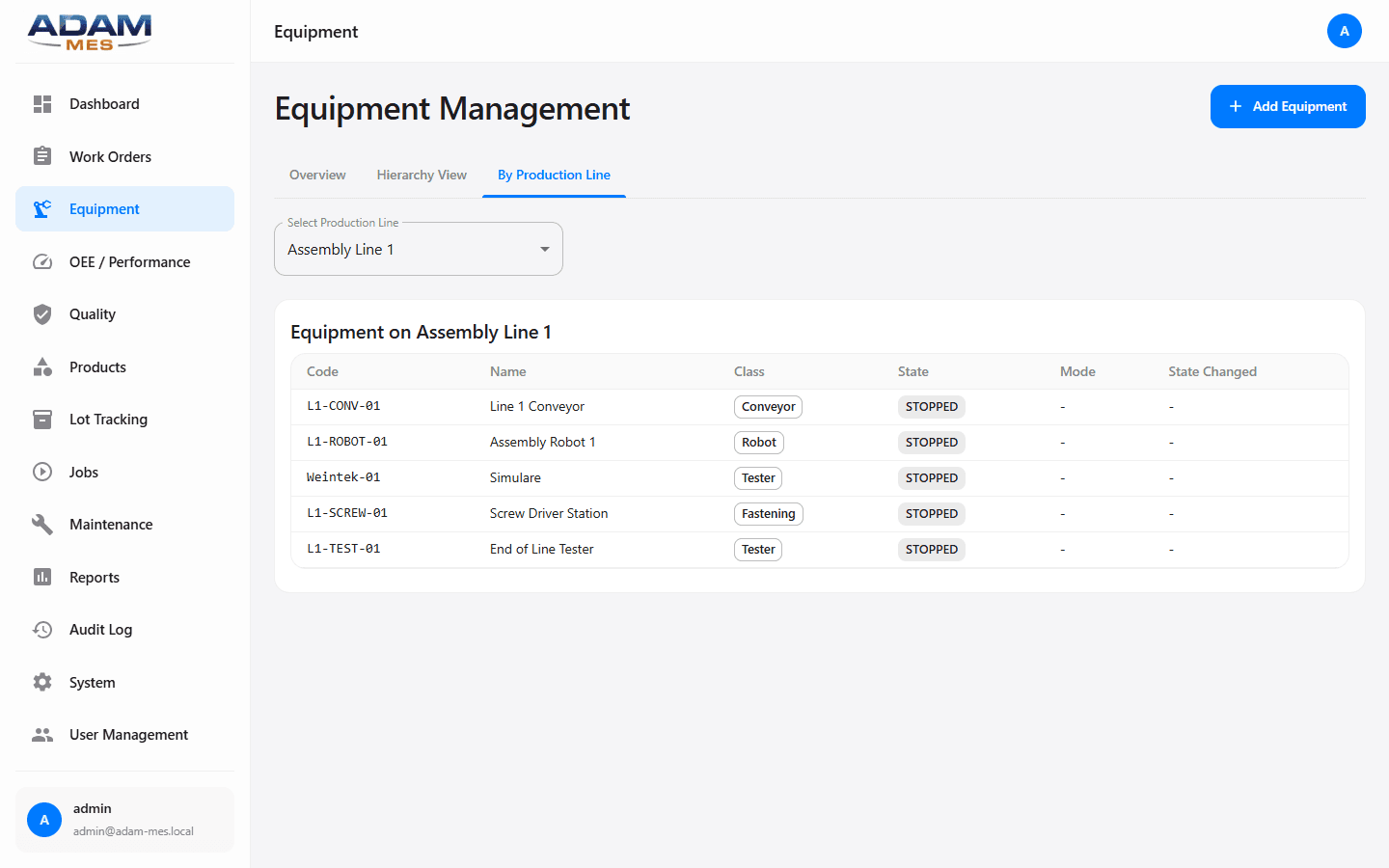
Click Equipment in the sidebar. The Overview tab loads first, showing total equipment count, how many are Running, Stopped, or Faulted, and a breakdown by class (CNC, Robot, Press, Tester, Conveyor). Switch to Hierarchy View to see the ISA-95 tree: Enterprise → Site → Area → Line → Equipment. Use By Production Line to see which machines belong to each line — this is essential when planning capacity or reassigning equipment during peak demand.
How to register a new machine
Click + Add Equipment, assign a class (CNC Machine, Robot, Press, etc.), place it on a production line, and add technical specs. From this moment on, every state change, maintenance event, and OEE data point for that machine is tracked automatically.
Practical example
Your CFO asks whether you need to purchase a new CNC machine. Open Equipment, filter by CNC class, check each machine's uptime and utilization. If your existing CNC fleet runs at only 68% utilization with frequent Stopped states, the answer isn't a new machine — it's better scheduling and maintenance. You just saved a six-figure capital expense with data that took 30 seconds to pull.
Who this helps
Maintenance managers who need equipment history. Plant engineers planning capacity and layout. Finance teams making capital investment decisions based on actual utilization data instead of gut feeling.
Equipment overview with state distribution and classification by type (CNC, Robot, Press, etc.).
ISA-95 Hierarchy View: the standard enterprise-to-equipment structure.
Equipment grouped by Production Line for capacity and layout planning.
4
OEE & Performance Analytics
The problem: OEE is the gold standard metric for production efficiency, but most factories calculate it manually — if at all. Operators fill in paper logs, someone enters data into Excel, and by the time you see the number it's yesterday's news. Worse, you can't tell where you're losing: Availability? Performance? Quality? Without this breakdown, improvement efforts are scattered and budgets go to the wrong places.
The solution: ADAM MES calculates OEE in real time using live MQTT data from the production lines. The formula (Availability × Performance × Quality) updates continuously, and the breakdown tells you exactly where your losses are — so every improvement dollar goes where it has the biggest return.
5–15%
OEE improvement typical in the first 6 months
€50K+/yr
Recovered output from eliminating hidden losses
Immediate
Visibility into where you’re losing money
How to read OEE data
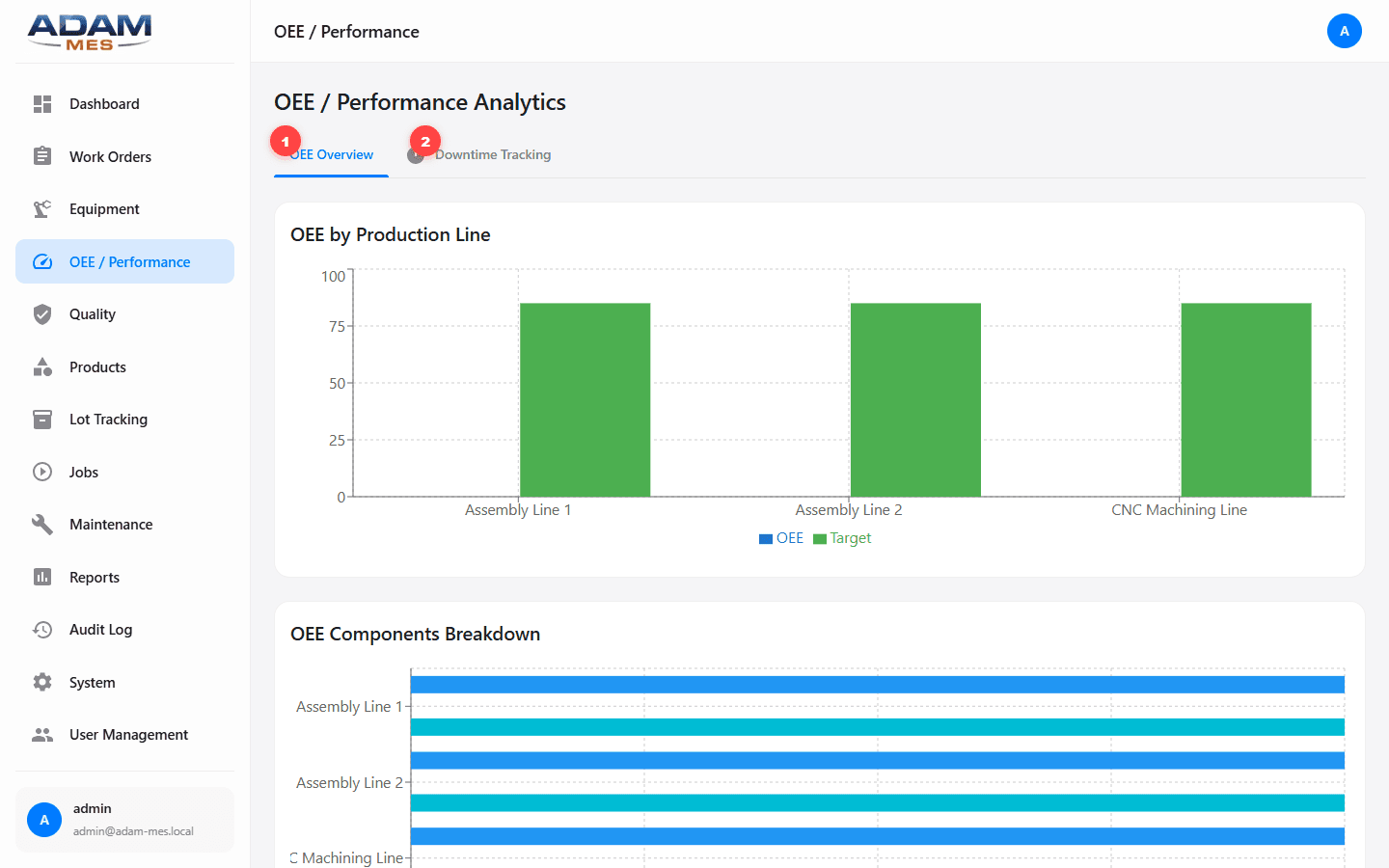
Navigate to OEE / Performance in the sidebar. The OEE Overview tab loads with a bar chart comparing each production line's OEE against target. Below it, the OEE Components Breakdown shows stacked bars splitting each line's score into Availability, Performance, and Quality. If Assembly Line 1 has high Availability but low Performance, the problem is cycle time — not downtime. This distinction saves you from solving the wrong problem.
How to use Downtime Tracking
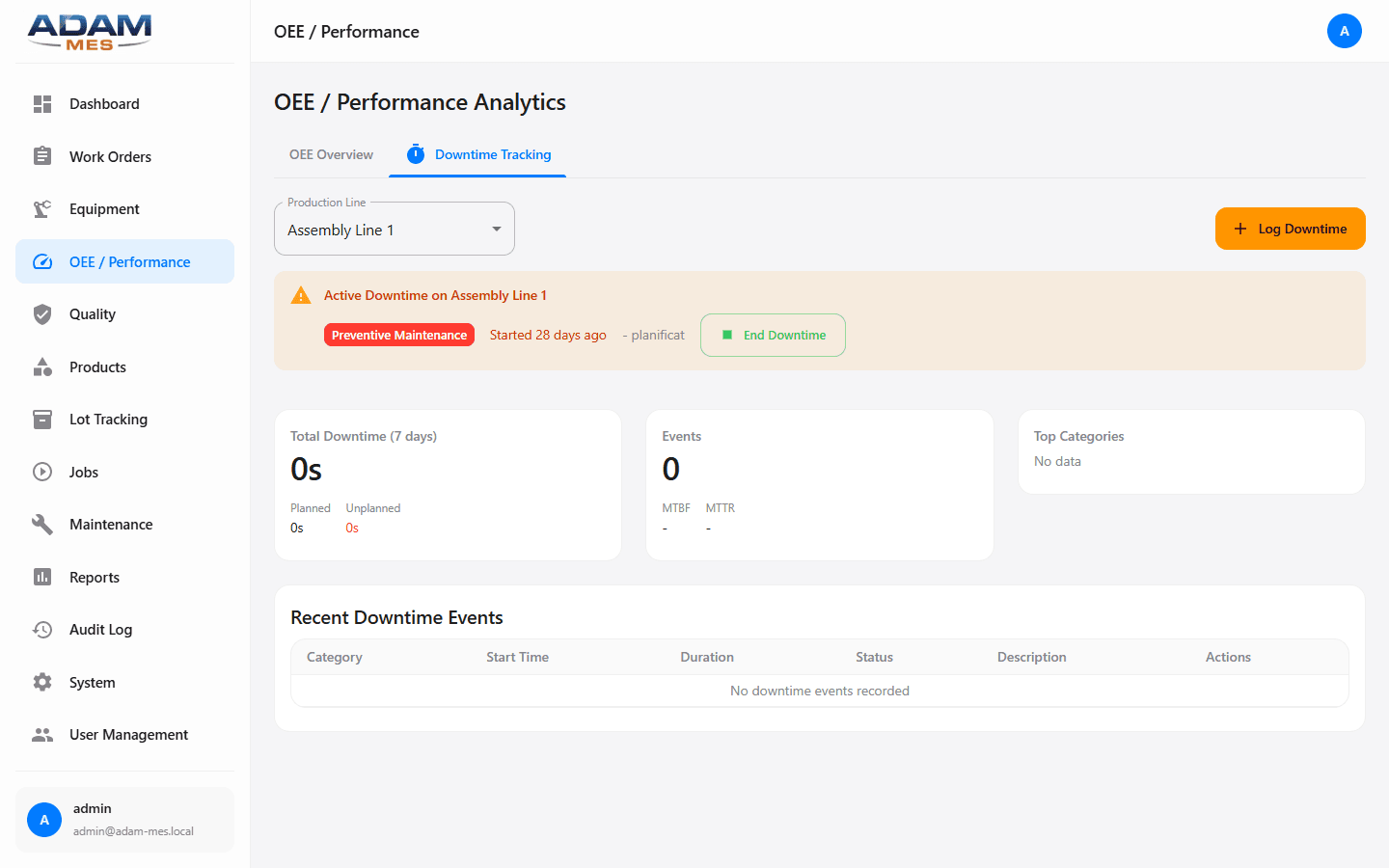
Click the Downtime Tracking tab to see every stoppage logged with reason code, planned vs. unplanned flag, duration, and affected equipment. Sort by duration to find your top downtime contributors. These are your highest-value improvement targets — eliminating the top 3 downtime reasons often recovers more capacity than adding a new shift.
Practical example
Your plant runs at 72% OEE. The breakdown shows Availability at 91%, Quality at 98%, but Performance at only 81%. That means the machines are running, the parts are good, but cycle times are slow. You investigate and discover operators are running a manual changeover that should be automated. A targeted investment in quick-change tooling brings Performance to 92%, raising overall OEE to 82%. On a line producing €2M/year, that 10-point improvement is worth €200K in additional output — from the same machines, same people, same shift.
Who this helps
Continuous improvement engineers, production managers, and lean teams who need data-driven insight into where output is being lost — and the financial justification to fix it.
OEE Overview: per-line comparison against target, plus Availability / Performance / Quality breakdown.
Downtime Tracking: categorized events with reason codes and duration analysis.
5
Quality Management
The problem: Quality issues caught late cost 10× more than those caught early. But paper-based inspection logs, disconnected quality systems, and missing traceability mean defects escape and recalls get expensive. When a customer complaint arrives, retracing the root cause takes days. A single recall can cost tens of thousands in scrap, rework, and lost customer trust.
The solution: Quality Management in ADAM MES links inspections directly to lots, products, and work orders — creating an unbroken chain from production to quality disposition. Catching issues at the source means fewer defective units leave the factory, reducing warranty costs and protecting your reputation.
10× less
Cost to catch a defect at the line vs. at the customer
Minutes
To trace a complaint to its root cause, not days
Near-zero
Quality escapes with in-process inspections
How to create an inspection
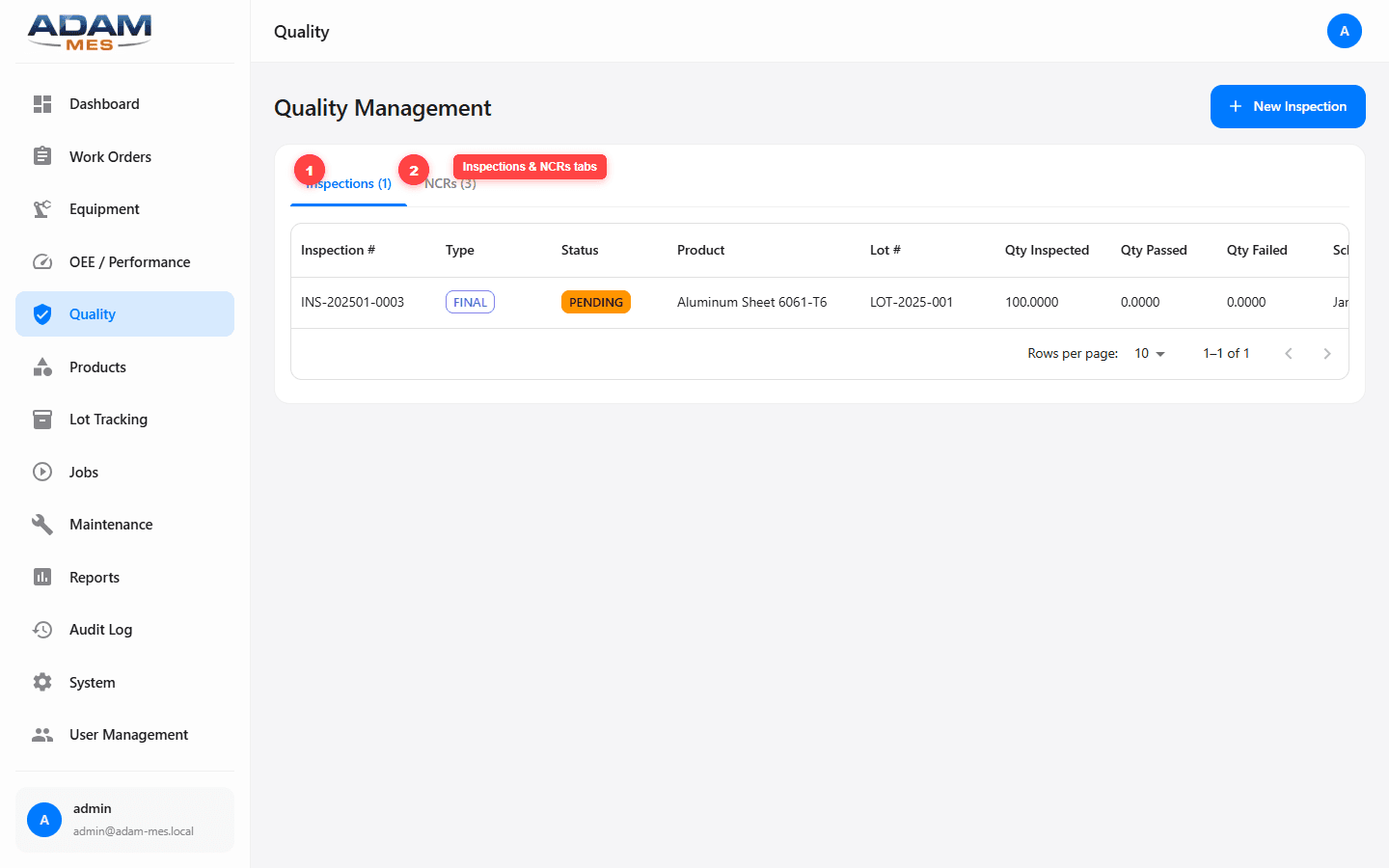
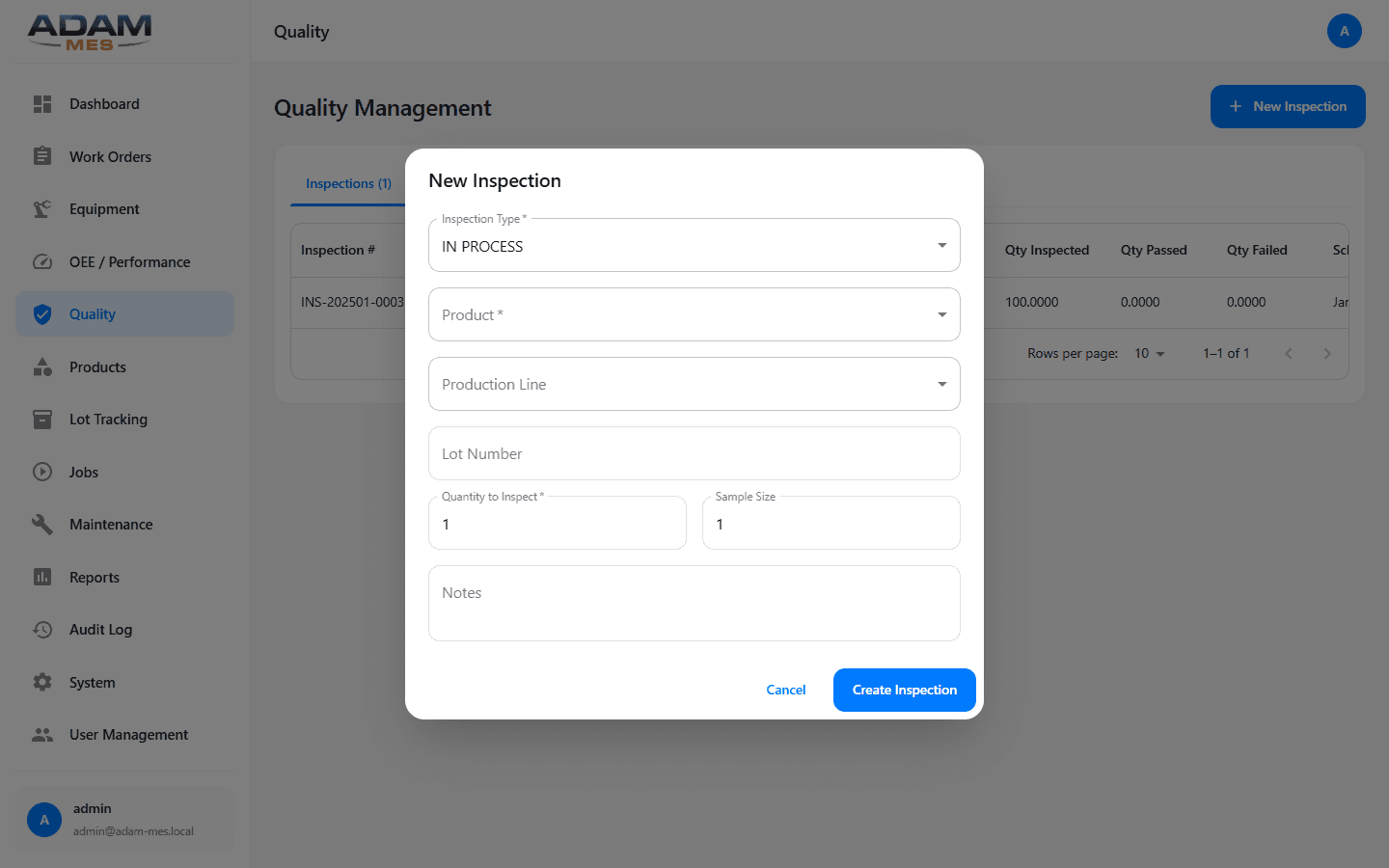
Navigate to Quality in the sidebar. Click + New Inspection. Select the Inspection Type (IN_PROCESS for during production, FINAL for end-of-line). Choose the Product, Production Line, and enter the Lot Number. Set the Quantity to Inspect and Sample Size. Click Create Inspection. The inspection appears in the table as PENDING. After performing the physical check, update it to PASSED or FAILED with the actual quantities.
How to handle non-conformances
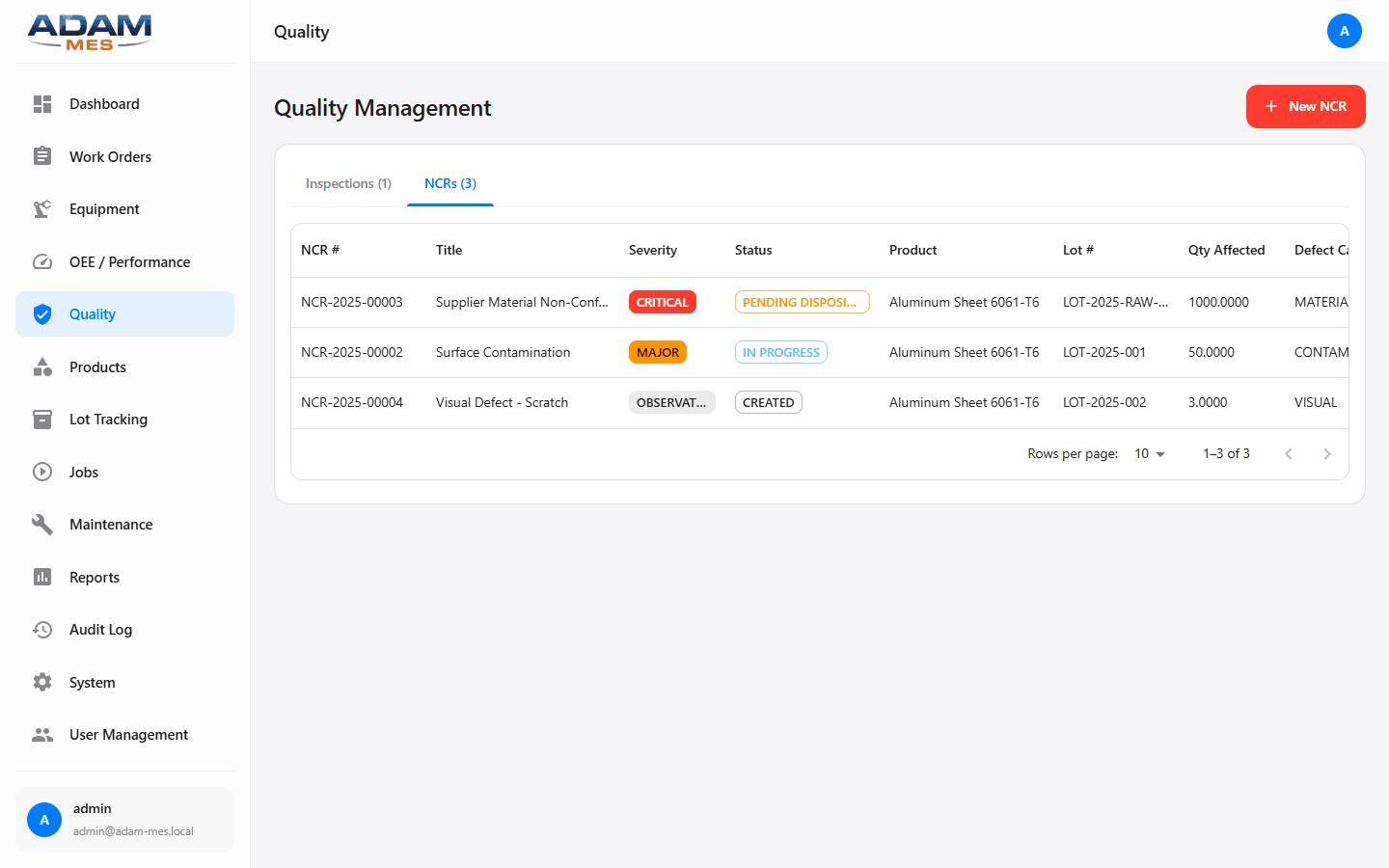
Switch to the NCRs tab. When a defect is found, create an NCR linked to the specific lot and work order. Categorize the root cause, assign a responsible engineer, and choose a disposition: Use-As-Is, Rework, Scrap, or Return to supplier. The corrective action workflow ensures the issue is resolved and documented — not just patched.
Practical example
A customer reports dimensional issues on 50 units. Open Quality, search by product, and find the lot number from the complaint. The NCR trail shows the issue originated from a raw material lot with an out-of-spec aluminum batch. You quarantine the remaining stock in seconds, notify the supplier with documented evidence, and limit the impact to those 50 units instead of discovering 500 more next week. The cost of the investigation: 15 minutes. The cost of not having this system: potentially your largest customer.
Who this helps
Quality engineers, QA managers, and compliance teams in industries like automotive (IATF 16949), aerospace (AS9100), and pharma (FDA) where traceability and inspection records are mandatory. Also any manufacturer tired of expensive quality escapes eating into margins.
Quality inspections with type, status, and linked product/lot traceability.
NCR tracking: root cause analysis, corrective actions, and disposition.
Creating a new inspection linked to a product and lot.
6
Product Definitions & Master Data
The problem: Product data scattered across ERP, spreadsheets, and tribal knowledge creates confusion. Which products need inspection? Which require lot tracking? What unit of measure? Teams waste time clarifying basic facts that should be definitive — and inconsistencies lead to wrong materials used, wrong quantities ordered, and rework that directly cuts into margins.
The solution: Product Definitions is the single source of truth for everything you manufacture or consume. Every work order, lot, inspection, and report references this master data — ensuring consistency across the entire system and eliminating confusion-driven waste.
How to set up products
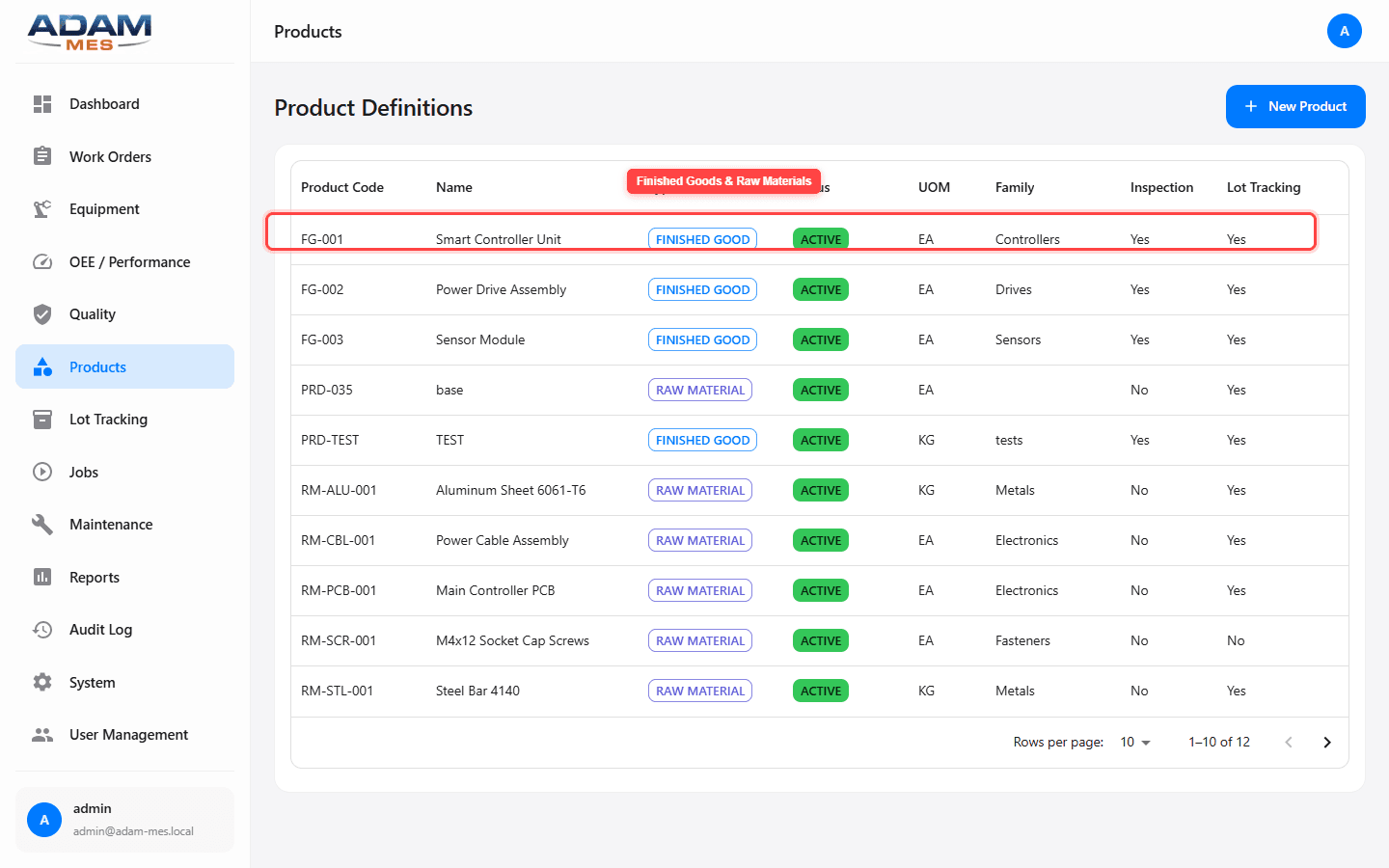
Navigate to Products in the sidebar. Each product is defined with a Product Code (FG-001 for finished goods, RM-ALU-001 for raw materials), Name, Type (Finished Good or Raw Material), Status (Active/Inactive), UOM (EA, KG), and Family (Controllers, Drives, Sensors, Metals, Electronics, Fasteners). Two important toggles: Inspection Required (automatically triggers quality checks during production) and Lot Tracking (enables full genealogy traceability). Set these correctly upfront and the rest of the system enforces them automatically — no manual reminders needed.
Who this helps
Engineering teams defining what gets produced. ERP integration teams syncing product master between systems. Quality teams configuring inspection requirements per product. Getting master data right is the foundation — every other module depends on it.
Product master data: Finished Goods and Raw Materials with inspection and lot tracking configuration.
7
Lot Tracking & Traceability
The problem: When a customer reports a defect, you need to know: Which batch was it from? What raw materials went into it? Which machines processed it? Without a connected traceability system, answering these questions takes days of detective work — if you can answer them at all. In the meantime, you might have to recall an entire production run instead of isolating the affected batch. The difference between a targeted 50-unit containment and a 5,000-unit recall is often the difference between a minor incident and a serious financial hit.
The solution: Lot Tracking provides complete forward and backward traceability across the entire production chain. From raw material receipt to finished goods shipment, every lot is tracked with full genealogy — so recalls are surgical, not catastrophic.
90%+
Reduction in recall scope with precise lot containment
Minutes
To trace any lot from raw material to shipped product
Audit-ready
Full genealogy documentation for any compliance audit
How to track lots
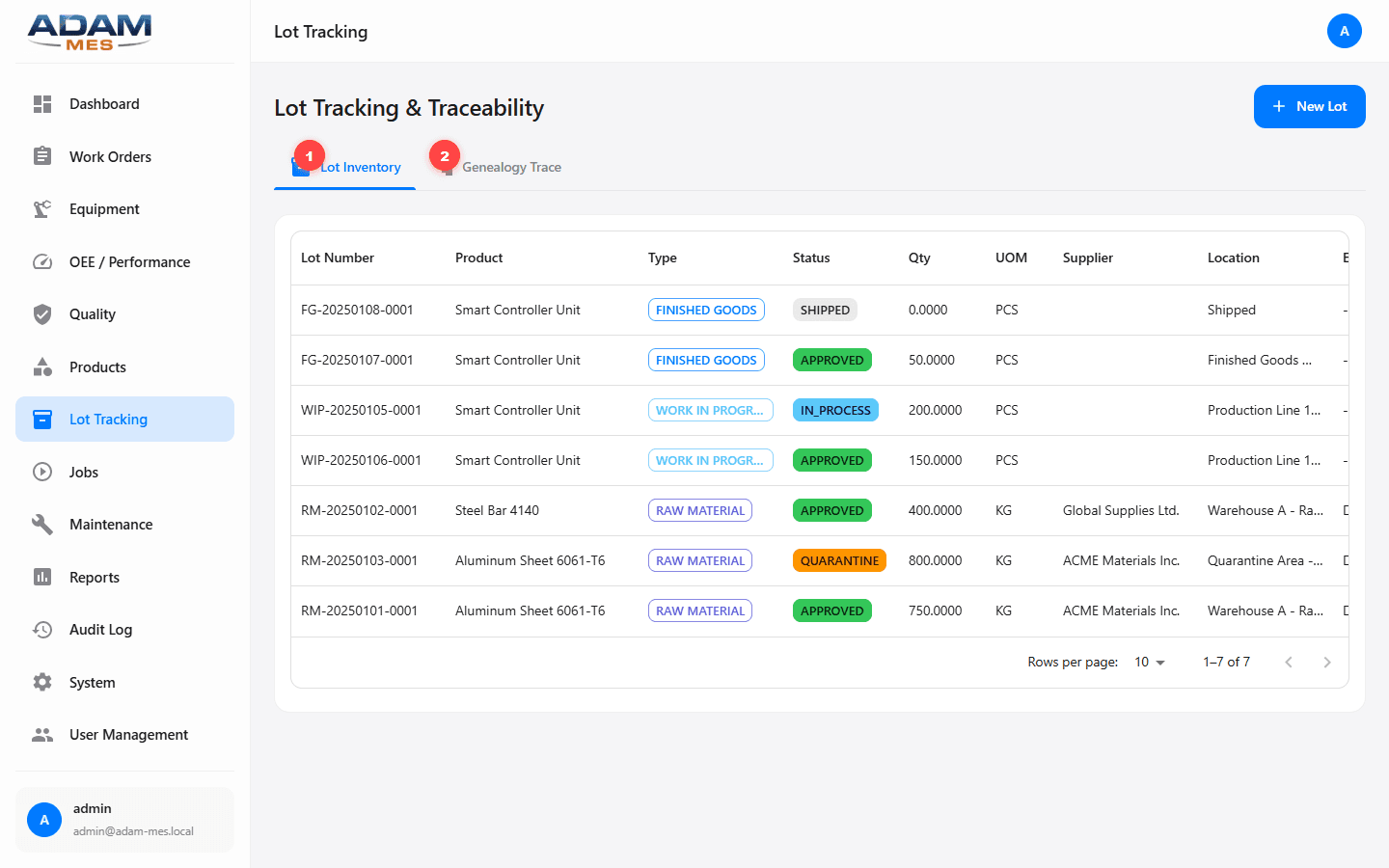
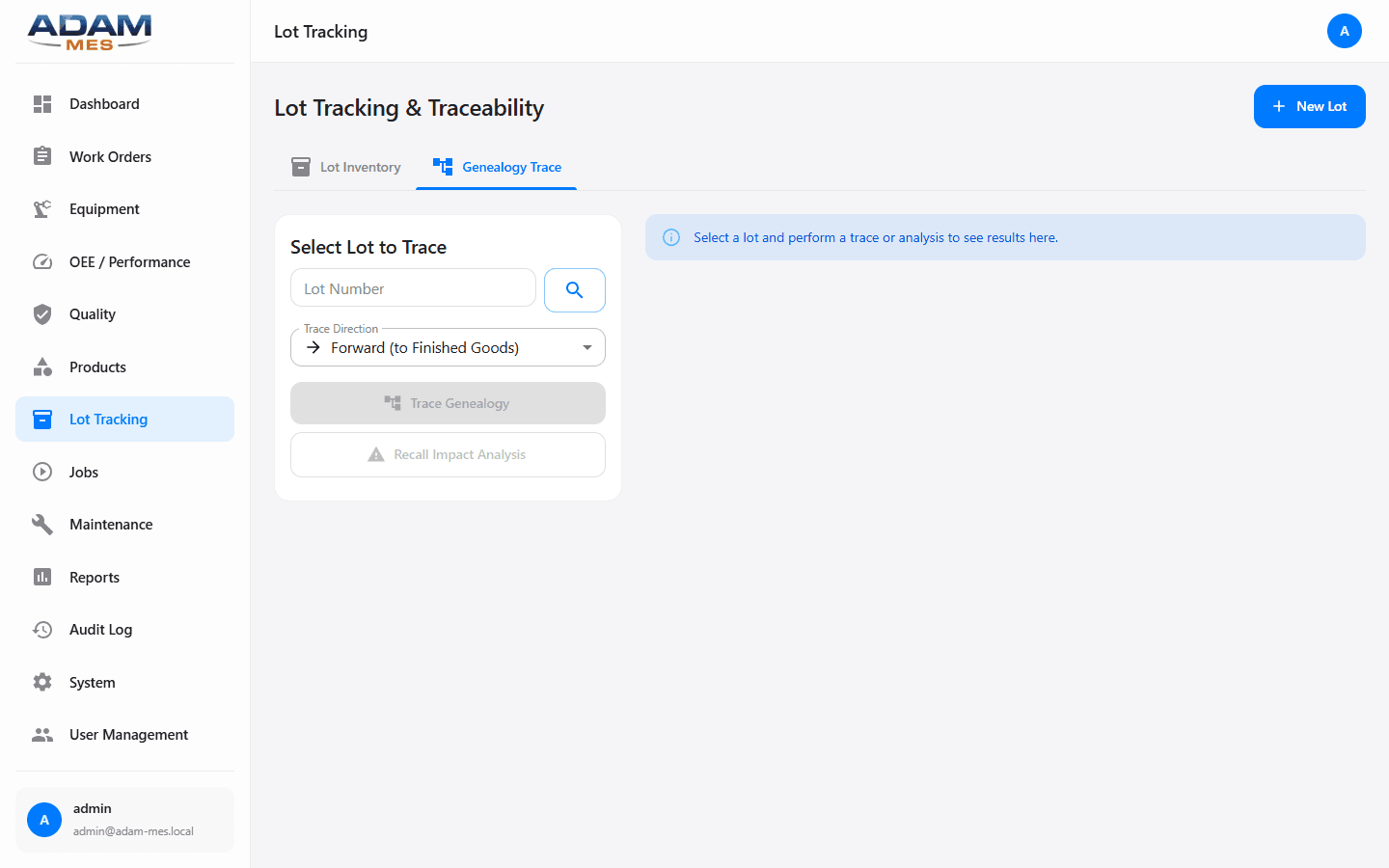
Navigate to Lot Tracking in the sidebar. The inventory table shows every lot with Lot Number, Product, Type (Raw Material, WIP, Finished Goods), Status (Approved, In_Process, Quarantine, Shipped), Quantity, Supplier, and Location. Use the color-coded status badges to quickly spot quarantined lots that need attention.
How to run a genealogy trace
Click the Genealogy Trace tab. Enter any lot number and the system renders the complete lineage tree: which raw material lots fed into which WIP lots, and which WIP lots produced which finished goods. Click any node to see its full detail. This is the view you show auditors, and it's the view that turns a week-long investigation into a 10-minute exercise.
Practical example
A supplier notifies you of a potential contamination in Aluminum Lot RM-ALU-2025-001. Open Genealogy Trace, enter the lot number, and immediately see which WIP and finished goods lots consumed that material. Quarantine only those specific lots. Without this system, you'd quarantine everything produced that week — potentially tying up hundreds of thousands in inventory unnecessarily.
Who this helps
Quality and compliance teams in regulated industries (FDA, automotive, aerospace) where traceability from raw material to finished product is mandatory. Supply chain teams managing supplier material tracking. Finance teams who understand that precise containment protects both revenue and reputation.
Lot Inventory: every lot tracked with status, supplier, location, and quantities.
Genealogy Trace: complete forward and backward traceability across the production chain.
8
Job Execution & Shop Floor Control
The problem: Work orders tell you what to produce. But who is producing it right now? How far along are they? How many good parts vs. scrap? Without job-level tracking, supervisors manage by walking the floor and operators have no visibility into their own performance. Scrap goes unnoticed until end-of-shift counts, and by then the material — and the money — is already wasted.
The solution: Jobs represent the actual execution of work orders on the shop floor. They track who is running what, how far along it is, and the real-time good/scrap count. When scrap spikes, you see it immediately and intervene before it compounds.
Live
Good/scrap counts updated in real time
Per-operator
Performance data to guide training
Same day
Scrap issues caught and corrected
How to monitor jobs
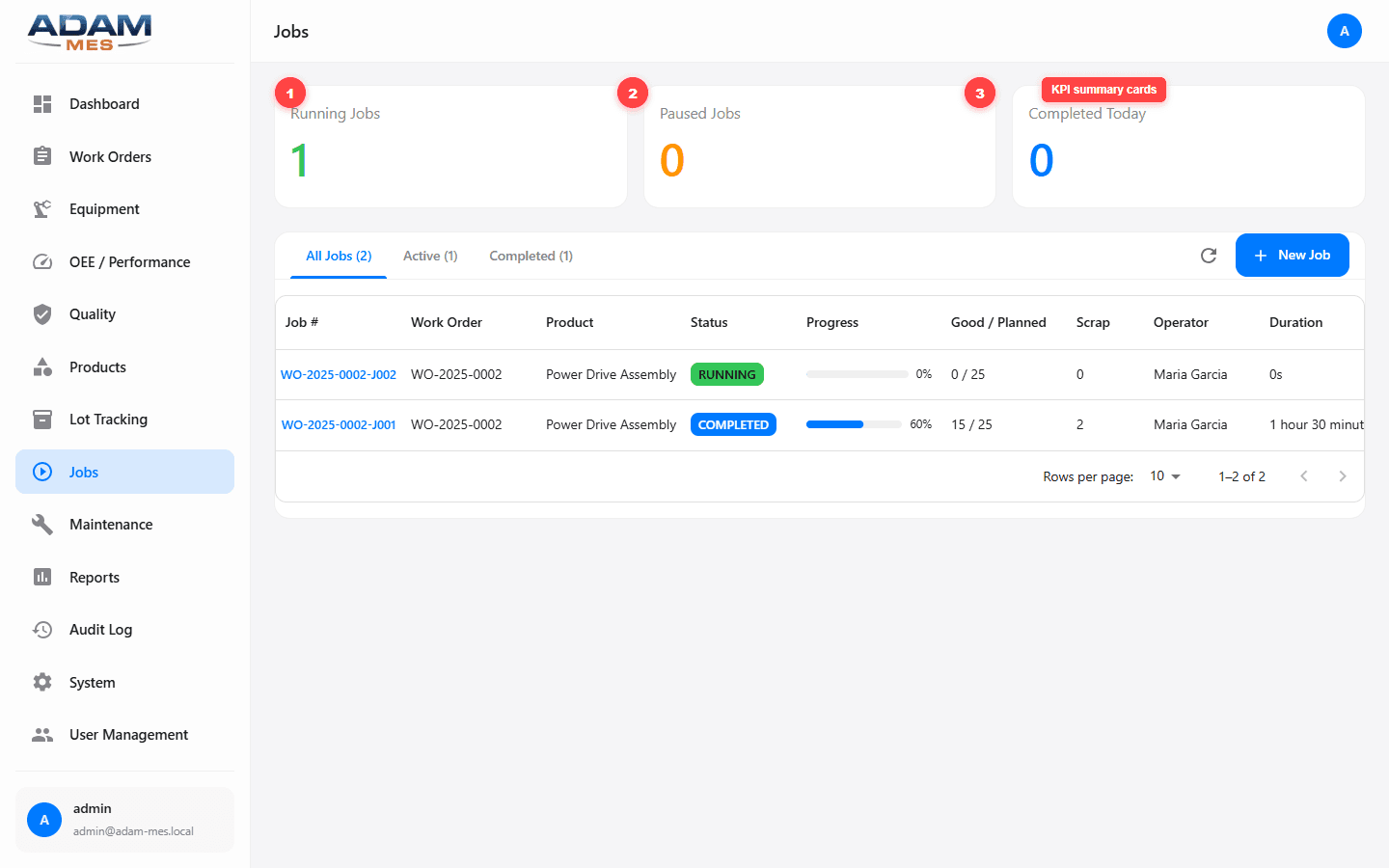
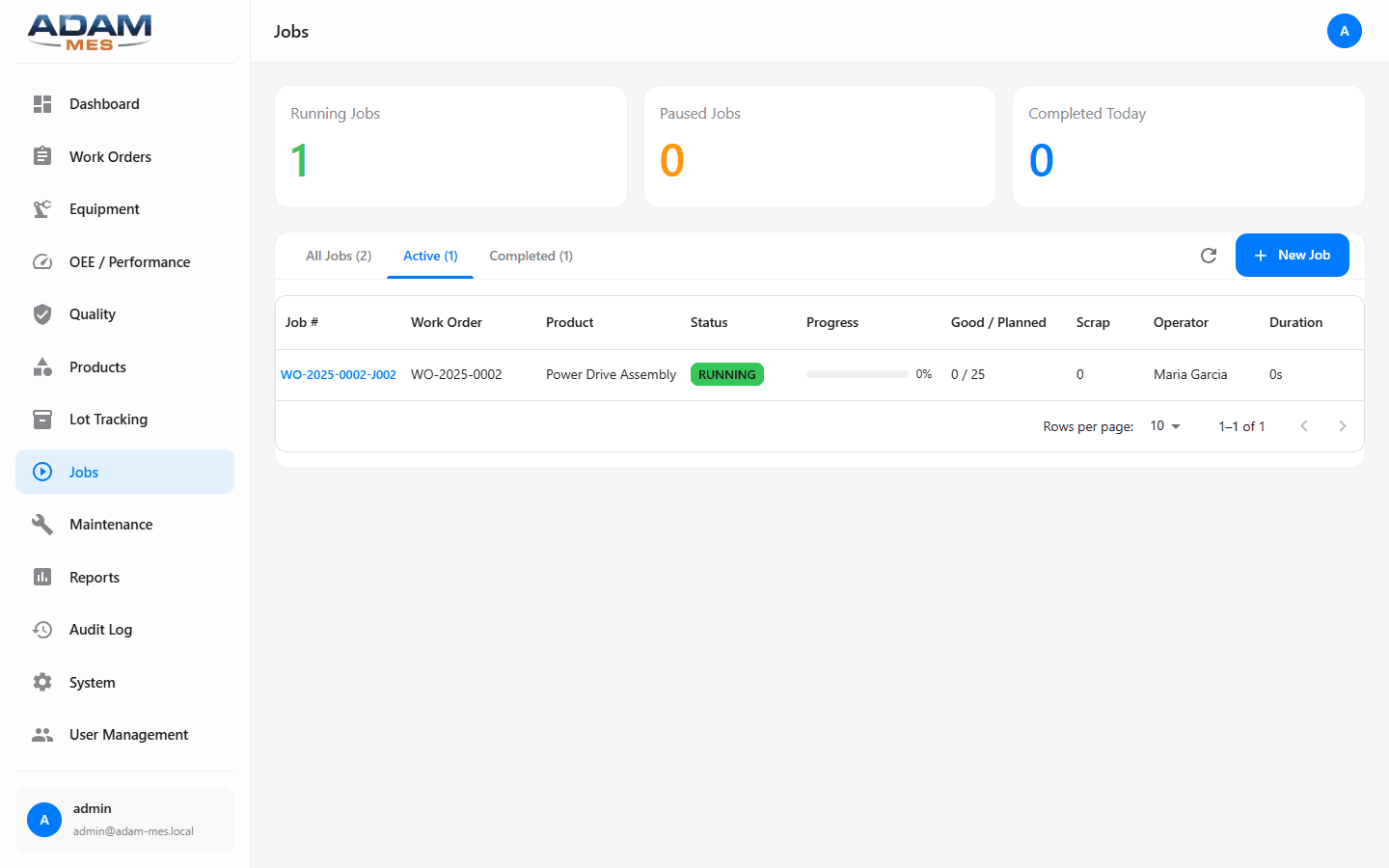
Navigate to Jobs in the sidebar. Three KPI cards at the top show Running Jobs, Paused Jobs, and Completed Today. Use the Active tab to see only what's running now, or Completed to review finished jobs. Each row shows Job #, linked Work Order, Product, a visual progress bar with Good vs. Planned count, Scrap count, assigned Operator, and Duration.
Practical example
Midway through a shift, you notice Job #J-00042 has a scrap count of 18 against 200 planned — that's a 9% scrap rate, well above your 2% target. You immediately check who's operating (Maria, Line 2), walk over, and discover a tooling issue that was silently producing defective parts. Fixing it takes 5 minutes. Without real-time scrap visibility, those 18 parts would have been 80+ by end of shift — material cost, labor cost, and missed delivery all avoided because you caught it early.
Who this helps
Shop floor supervisors tracking real-time execution. Operators who gain transparency into their own output. Production managers who can now correlate operator performance with output quality — turning data into targeted training that lifts the entire team.
Jobs overview with KPI cards and detailed table showing progress, scrap, and operator assignment.
Active tab: only running jobs for quick shift management.
9
Maintenance Management (CMMS)
The problem: Reactive maintenance is expensive: unplanned stops cost 3–5× more than planned maintenance. But most maintenance teams run on paper work requests, calendar-based PM schedules that don't account for actual equipment condition, and no data to justify capital decisions. Every hour of unplanned downtime costs the average manufacturing line €5,000–50,000 in lost output.
The solution: ADAM MES includes a full CMMS (Computerized Maintenance Management System) integrated directly with equipment data and production metrics. This means maintenance isn't a separate silo — it's connected to the machines it services. The result: fewer surprises, lower maintenance costs, and more uptime that converts directly to revenue.
3–5×
Cost difference between planned and unplanned maintenance
25–40%
Reduction in maintenance costs with preventive scheduling
Higher MTBF
Longer equipment life = delayed capital expenditure
How to submit a maintenance request
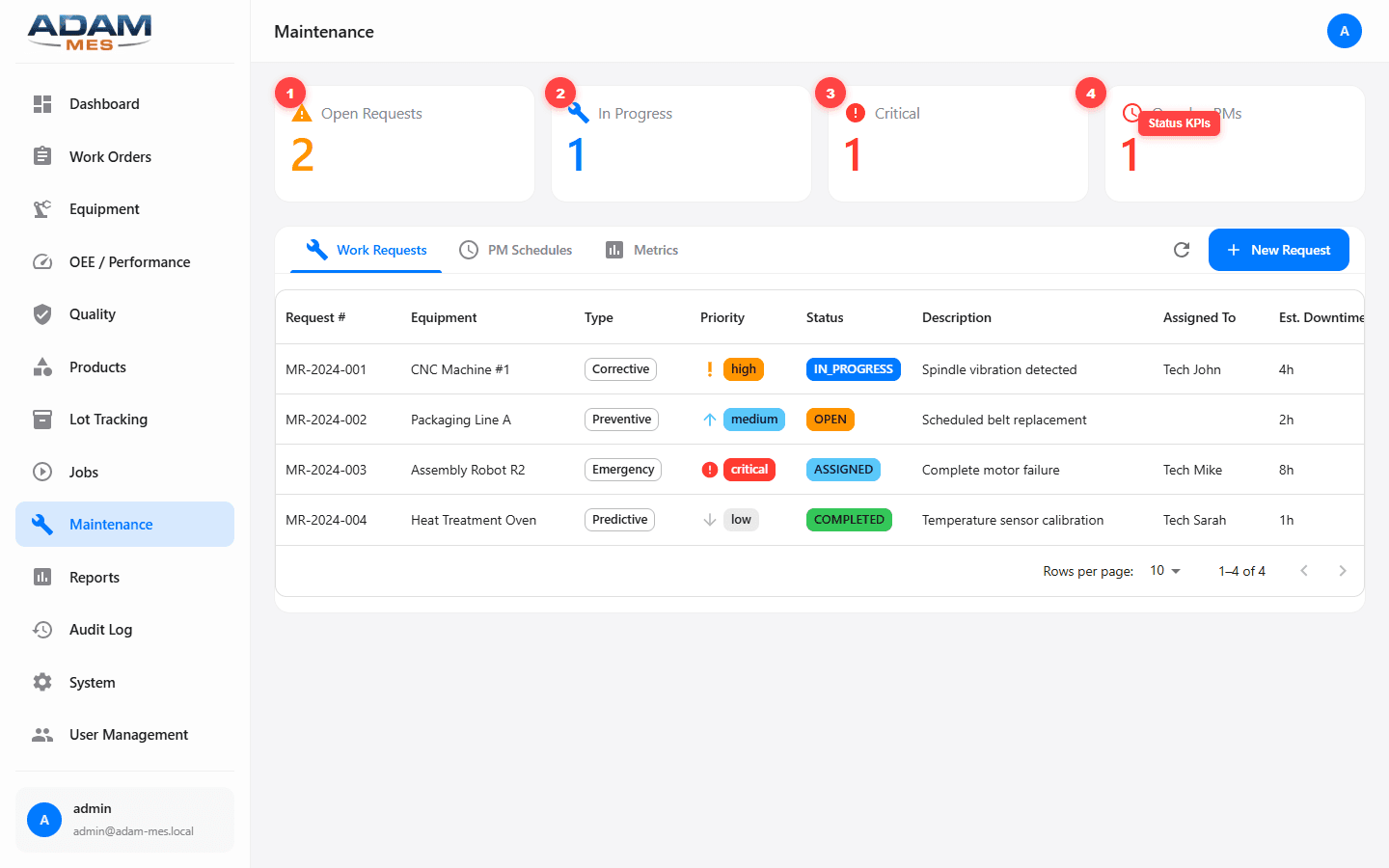
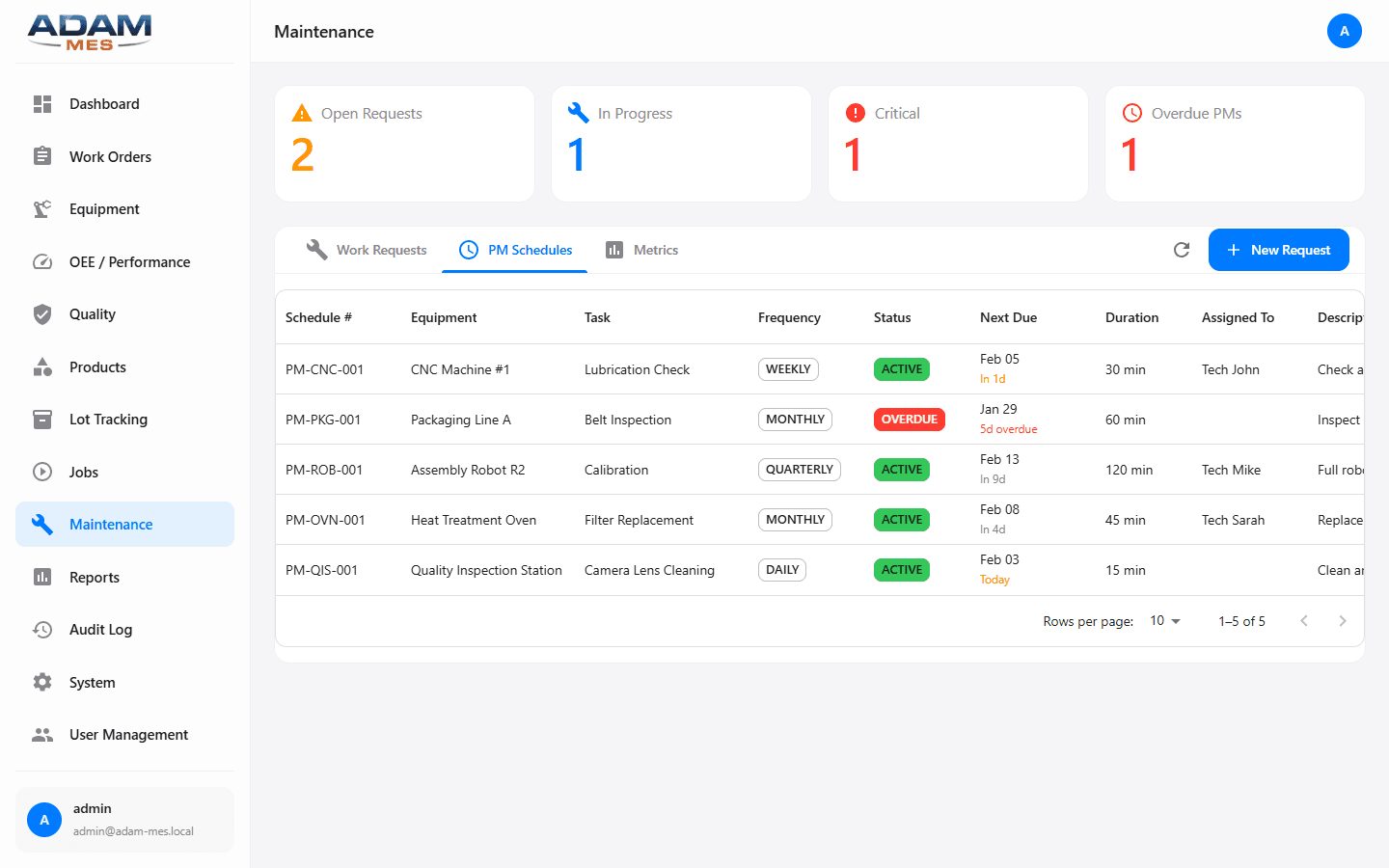
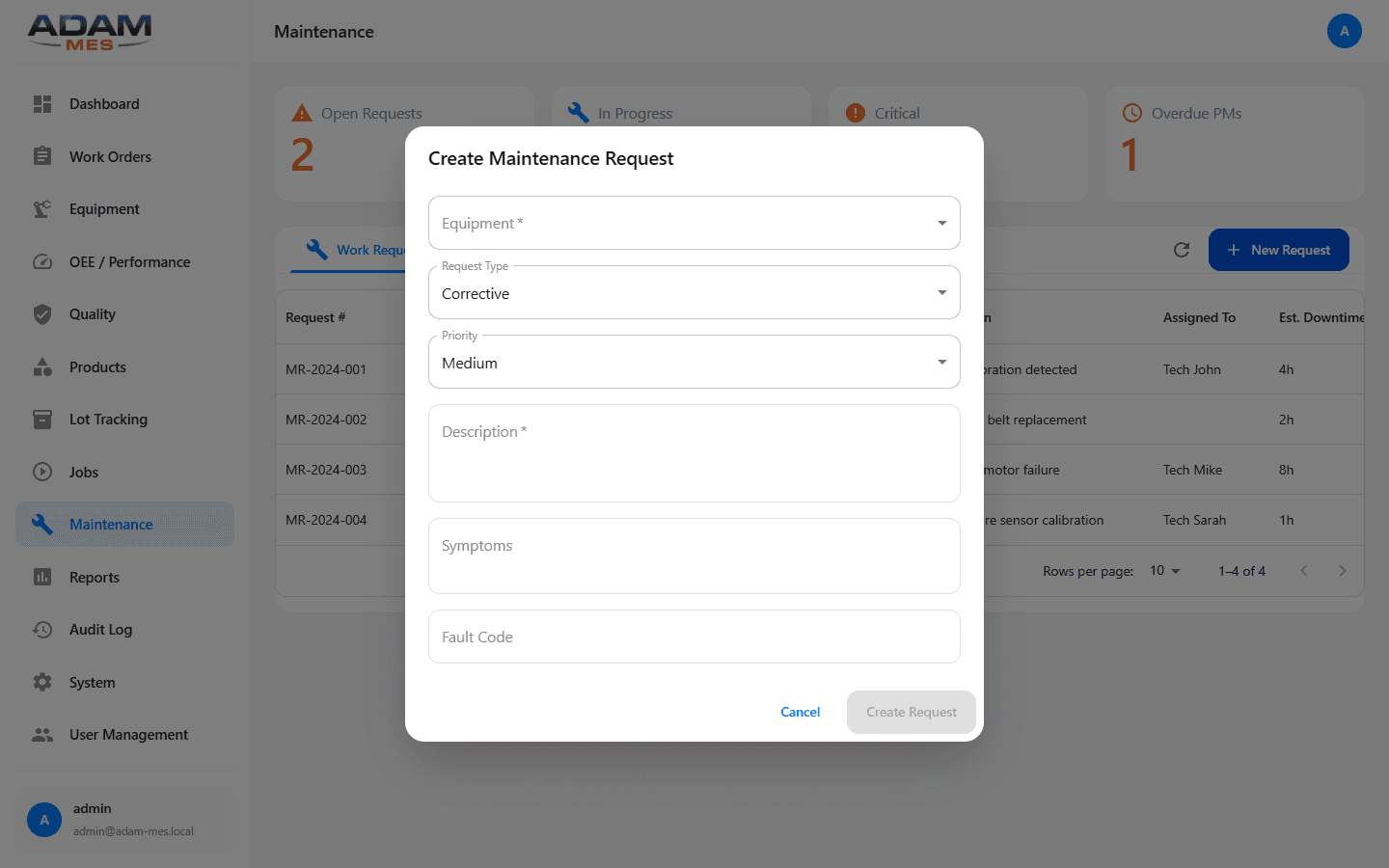
Navigate to Maintenance in the sidebar. Click + New Request. Select the equipment, choose the type (Corrective, Preventive, Emergency, or Predictive), set the priority, describe the issue, and assign a technician. The request appears in the table with status tracking. Four KPI cards at the top give you instant context: Open Requests, In Progress, Critical, and Overdue PMs.
How to set up preventive maintenance
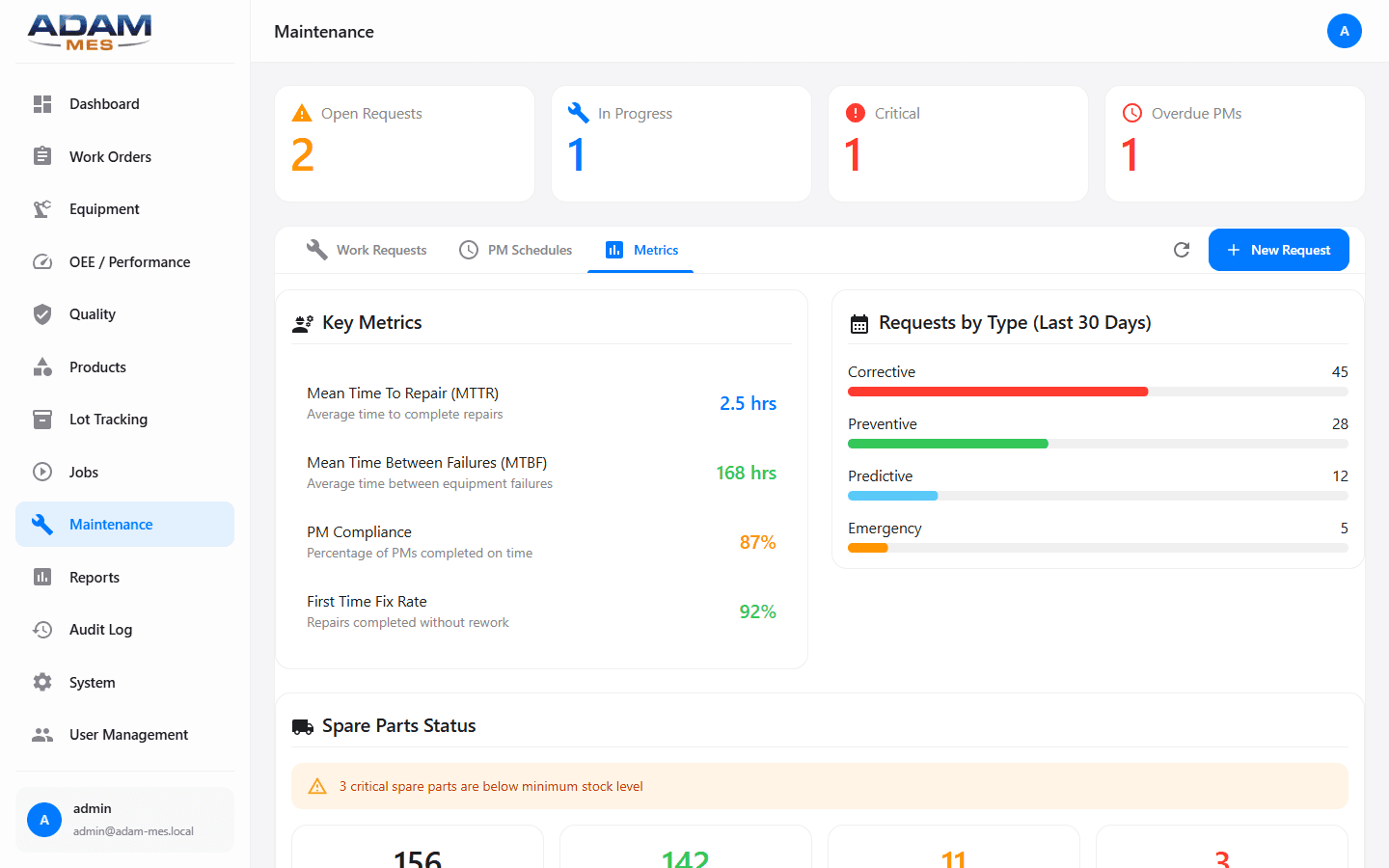
Click the PM Schedules tab. Define recurring tasks with frequency (weekly, monthly, based on run-hours), assign them to specific equipment, and track compliance. When a PM comes due, it auto-generates a work request so nothing gets forgotten. The Metrics tab shows MTBF, MTTR, cost tracking, and your planned vs. unplanned ratio — the single best indicator of maintenance maturity.
Practical example
Your planned vs. unplanned ratio is currently 30/70 (mostly reactive). After 3 months of using PM Schedules, you shift to 60/40. Unplanned stops drop by 40%, freeing up roughly 120 hours of production time per quarter. On a line that generates €500/hour in output, that's €60,000 per quarter in recovered revenue — from maintenance that was always possible but never tracked.
Who this helps
Maintenance managers and technicians who need organized work request tracking. Plant managers justifying maintenance budgets with real MTBF/MTTR data. Finance teams who will appreciate that every euro spent on preventive maintenance saves 3–5 euros in emergency repairs and lost production.
Maintenance work requests with annotated KPI cards: Open, In Progress, Critical, and Overdue PMs.
PM Schedules: recurring maintenance tasks with frequency and compliance tracking.
Maintenance Metrics: MTBF, MTTR, and planned vs. unplanned maintenance ratios.
Creating a new maintenance request with equipment, type, priority, and description.
10
Reports & Analytics
The problem: Data is only useful if the right people can see it in the right format. Exporting to Excel, building pivot tables, and emailing PDFs is how most factories do reporting. It's slow, error-prone, and the report is outdated by the time it arrives. Worse, when leadership asks "how did we perform last month?", someone spends half a day assembling the answer manually.
The solution: Built-in configurable reports generate visualizations directly from production data. Select the report type, configure filters, and generate — no external tools needed. The time your team spends building reports is time they're not improving production.
How to generate a report
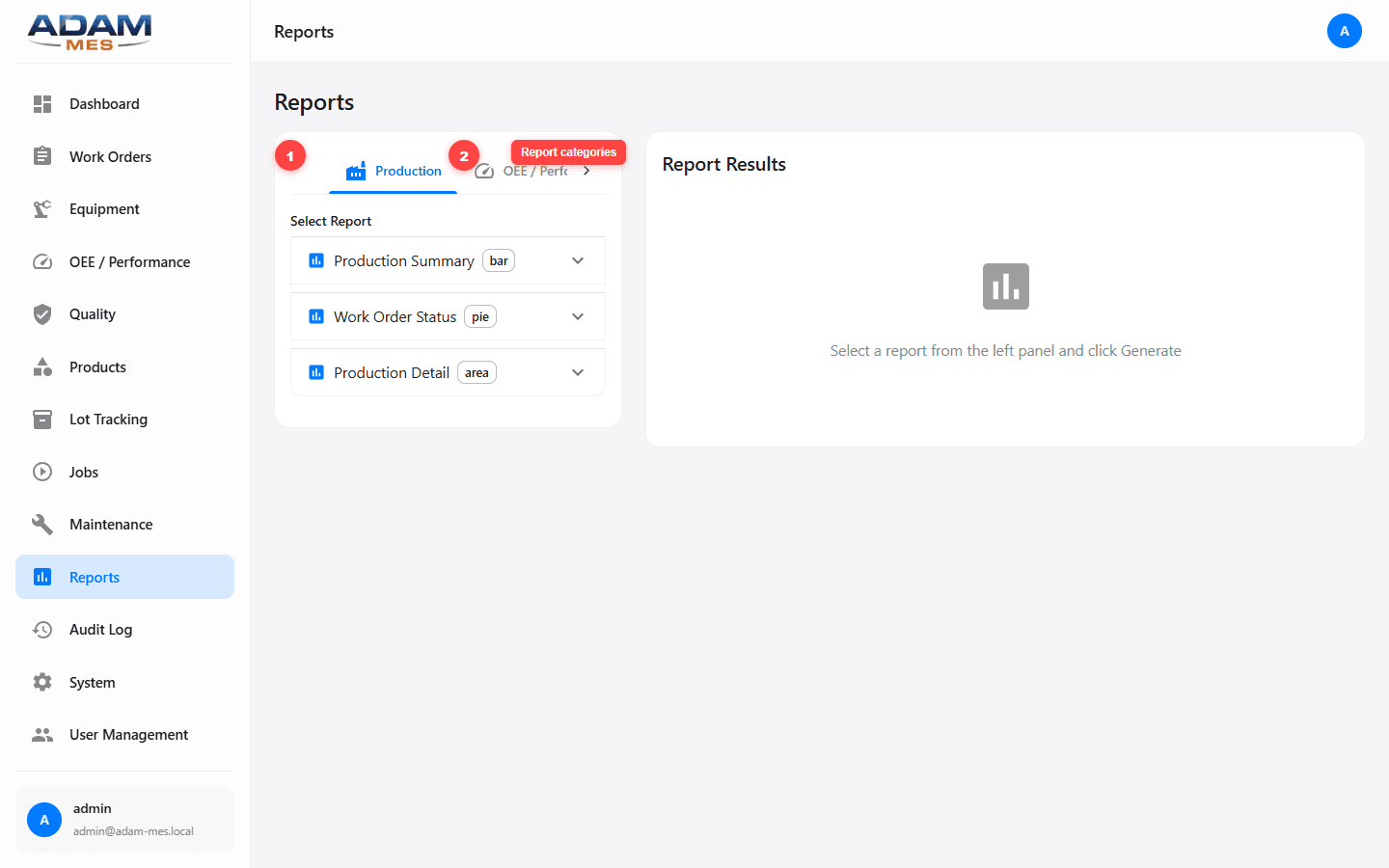
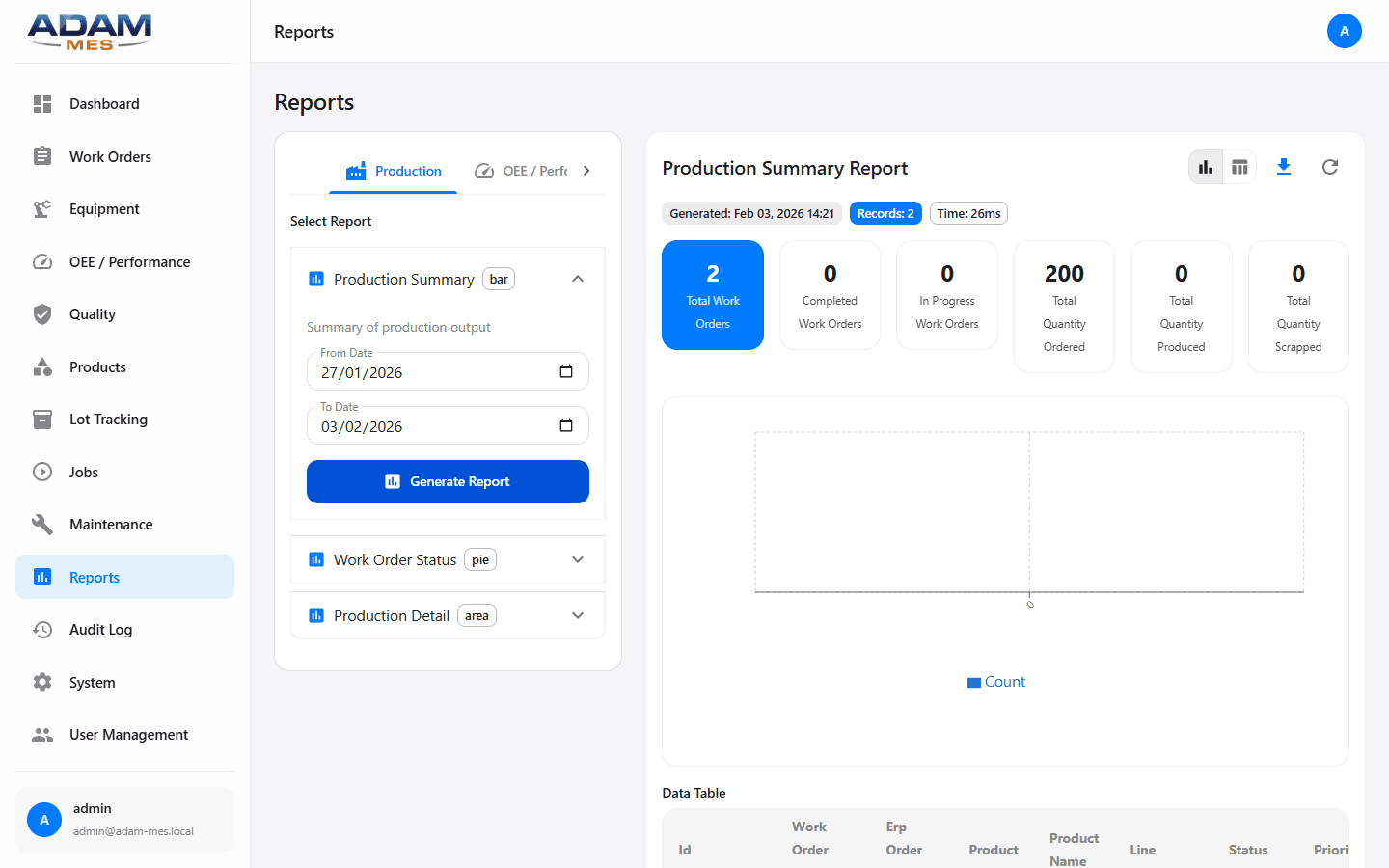
Navigate to Reports in the sidebar. Choose from three Production report types: Production Summary (bar chart of output by line and period), Work Order Status (pie chart showing order distribution), and Production Detail (area chart with granular trends). Select your date range and line filter, then click Generate. The chart renders instantly. OEE / Performance reports offer the same flexibility with line-by-line OEE breakdowns.
Practical example
Before the monthly management review, generate a Production Summary for the last 30 days. In one chart, leadership sees output by line, trends, and bottlenecks. No Excel, no emailing, no half-day preparation. The operations manager walks in with live data, makes confident decisions, and the meeting takes 20 minutes instead of an hour. That's time (and salary cost) recovered every single month.
Who this helps
Operations managers preparing shift reviews. Continuous improvement teams tracking KPI trends. Executive leadership who want production summaries in seconds, not days — so they can focus on decisions, not data gathering.
Report selection: Production Summary (bar), Work Order Status (pie), Production Detail (area).
A generated report with visual chart output.
11
Audit Log & Regulatory Compliance
The problem: Regulated industries (pharma, medical devices, food) require a complete, tamper-proof audit trail. FDA 21 CFR Part 11 demands electronic records and electronic signatures that can't be backdated, modified, or deleted. Failed audits can result in warning letters, production shutdowns, or import bans — each costing far more than the compliance system itself.
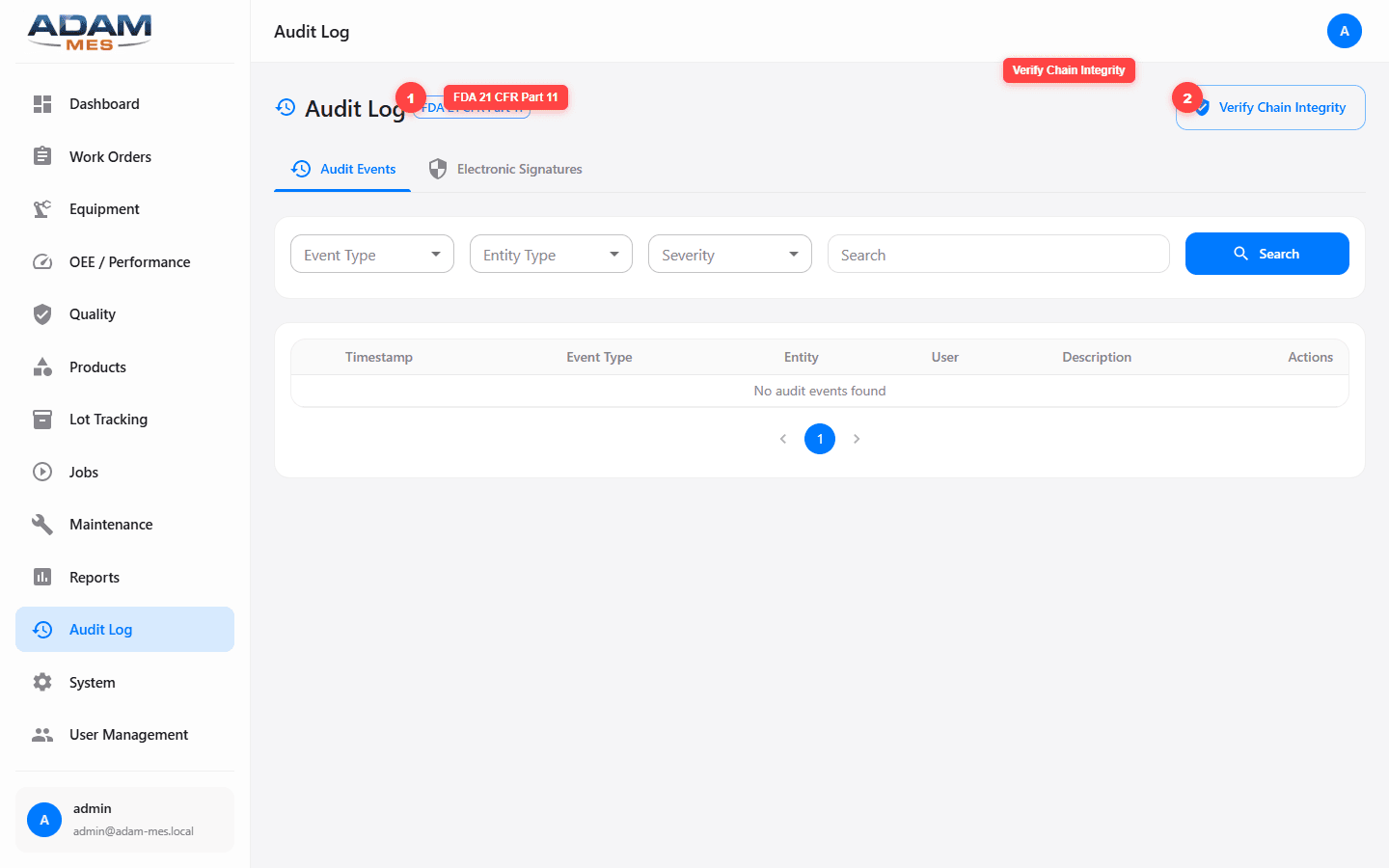
The solution: Audit logging in ADAM MES is built into the core architecture, not bolted on. Every create, update, and delete operation across every module is recorded immutably. The FDA 21 CFR Part 11 badge on the page confirms compliance with pharmaceutical-grade requirements. Passing audits becomes routine, not a scramble.
How to use audit events
Navigate to Audit Log in the sidebar. The Audit Events tab shows every system action with Timestamp, Event Type, Entity affected, User, and Description. Use the filters (Event Type, Entity Type, Severity, free-text search) to narrow down to exactly what you need. When an auditor asks "who changed this batch release on January 15th?", you filter by date and entity and have the answer in seconds.
Electronic Signatures
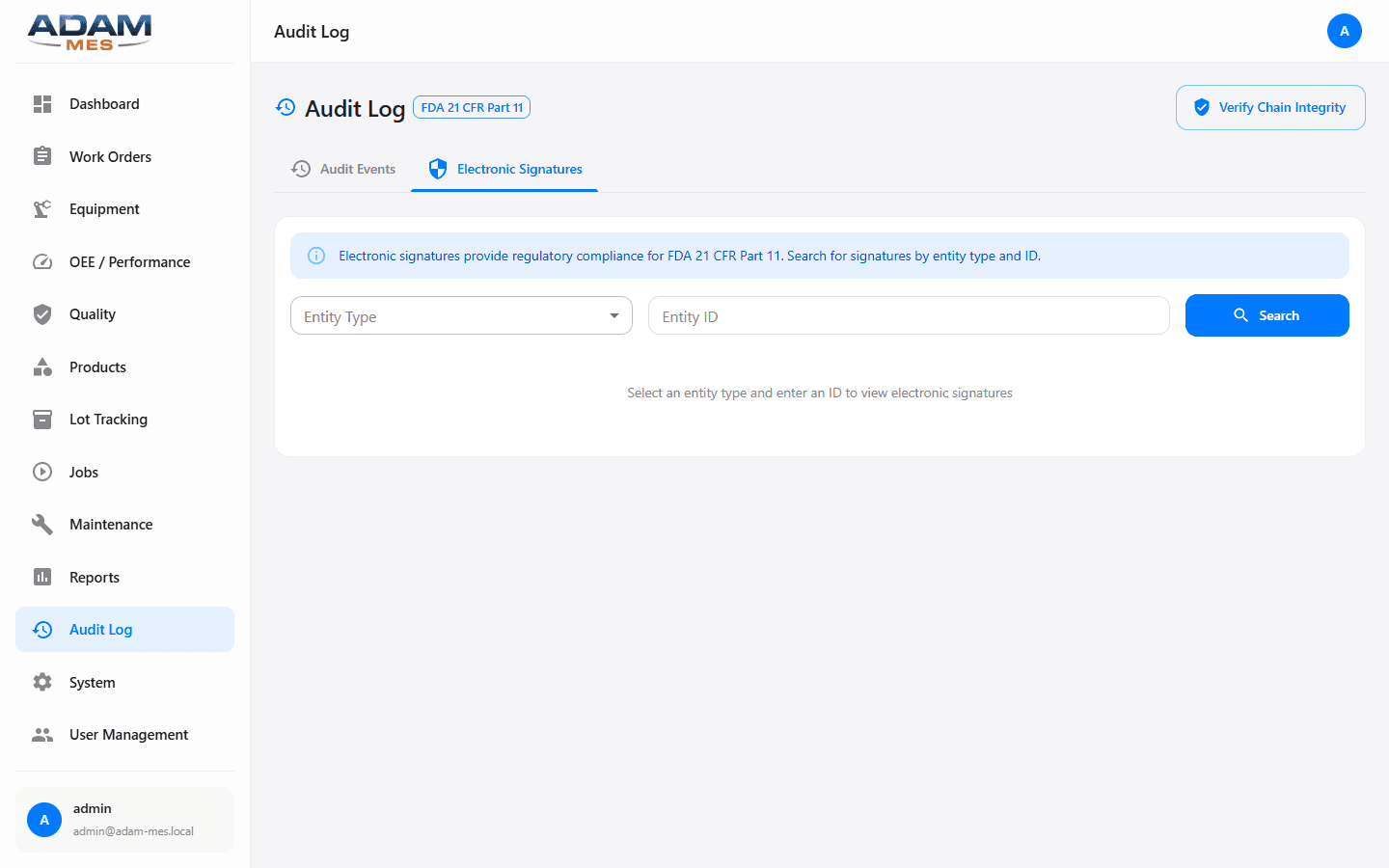
The Electronic Signatures tab provides 21 CFR Part 11 compliant e-signatures for critical operations: batch releases, quality approvals, specification changes. Each signature captures the signer, timestamp, reason, and action — meeting the legal standard for electronic records.
Chain Integrity Verification
Click Verify Chain Integrity to run a cryptographic check confirming no audit records have been tampered with. This proves to auditors that your historical record is authentic and complete — a level of assurance that paper logs simply cannot provide.
Who this helps
Regulatory affairs and compliance teams in FDA-regulated industries. Quality directors preparing for audits. Companies entering regulated markets who need compliance infrastructure from day one — avoiding the cost of retrofitting later.
Audit Log with annotated FDA 21 CFR Part 11 badge and Verify Chain Integrity button.
Electronic Signatures: 21 CFR Part 11 compliant signing for critical operations.
12
System Architecture & Infrastructure
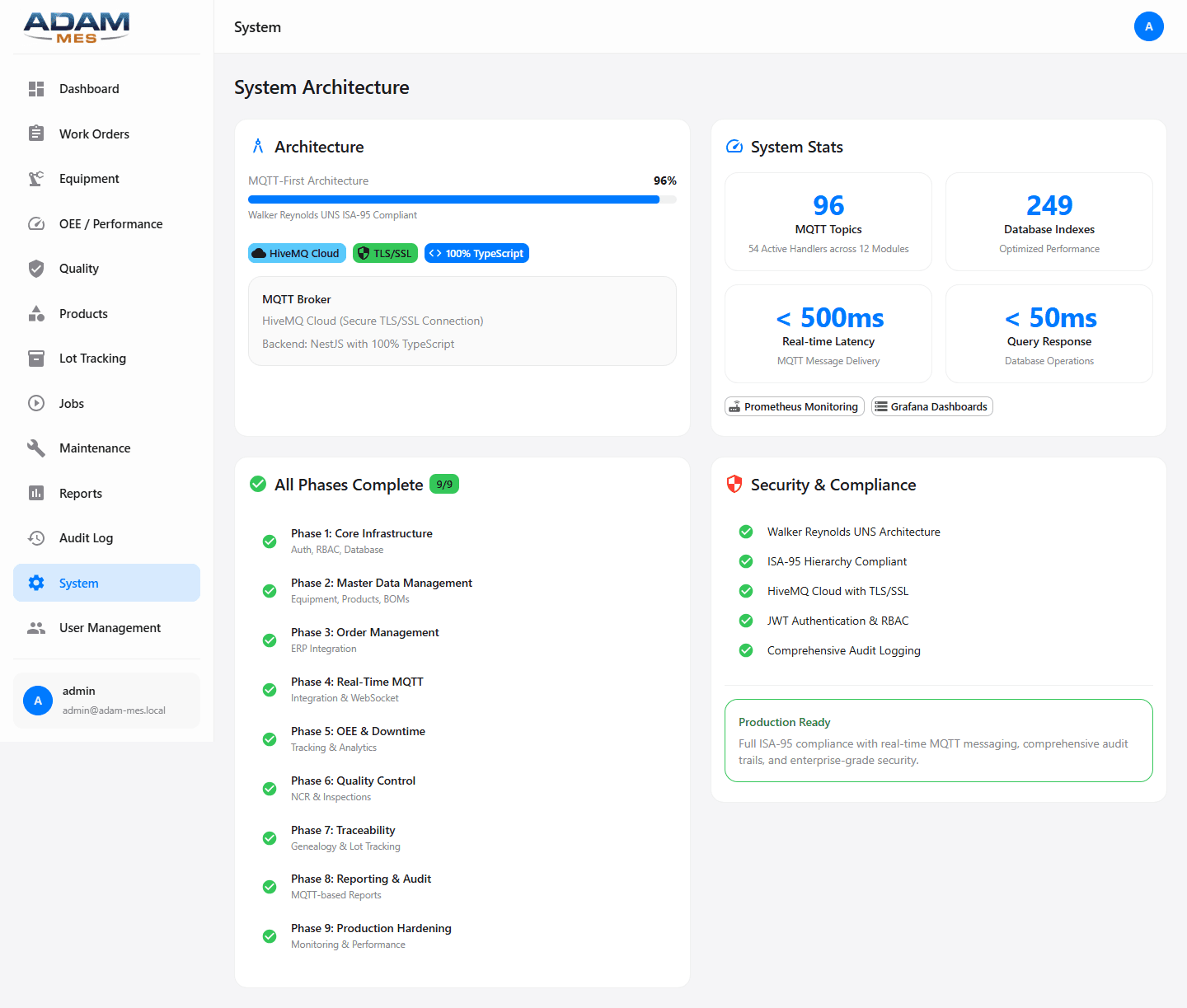
Why it matters: An MES is only as reliable as the infrastructure it runs on. Slow queries, dropped messages, or security gaps undermine everything else. ADAM MES is built on a modern, proven technology stack designed for real-time industrial workloads — so the system you depend on doesn't become a bottleneck itself.
MQTT-First Architecture
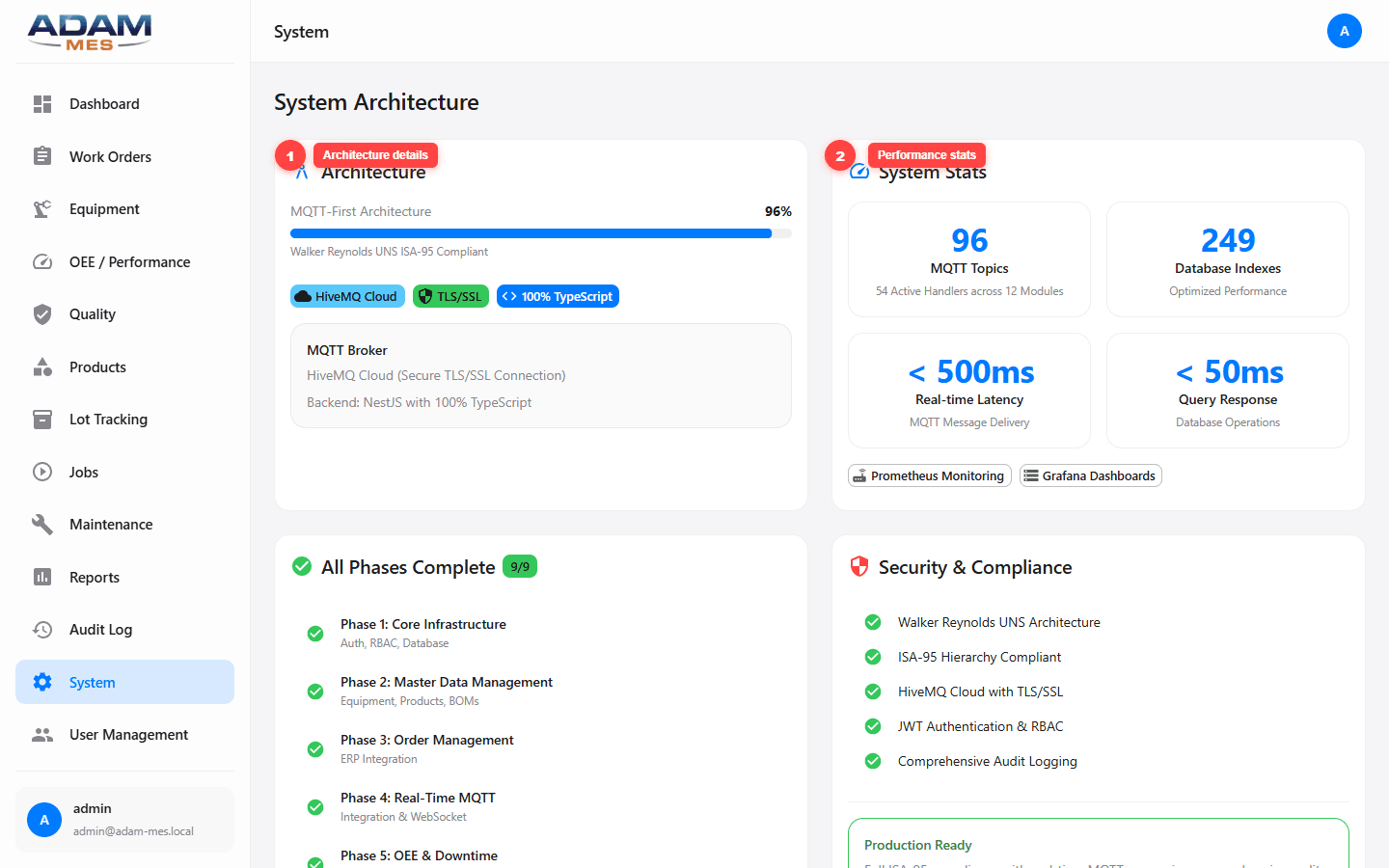
Following the Walker Reynolds Unified Namespace (UNS) pattern, all data flows through MQTT topics organized in an ISA-95 hierarchy. The MQTT broker is HiveMQ Cloud with TLS/SSL encryption, ensuring secure, real-time message delivery. The backend is built with NestJS in 100% TypeScript. This architecture means you can integrate with any PLC, sensor, or ERP that speaks MQTT — no proprietary connectors, no vendor lock-in.
Performance
96 MQTT topics with 54 active handlers across 12 modules. 249 database indexes optimized for query performance. <500ms real-time latency for MQTT message delivery and <50ms query response for database operations. Monitoring via Prometheus and Grafana. These numbers mean the system keeps pace with your fastest production line — no lag, no missed events.
Security & Compliance
Walker Reynolds UNS Architecture, ISA-95 Hierarchy Compliant, HiveMQ Cloud with TLS/SSL, JWT Authentication & RBAC, and Comprehensive Audit Logging. All 9 implementation phases completed: Core Infrastructure, Master Data Management, Order Management, Real-Time MQTT, OEE & Downtime, Quality Management, Lot Tracking, Maintenance, and Audit/Compliance.
Who this helps
IT directors evaluating MES technology stacks. Solutions architects planning enterprise integration. CTOs who want a system that scales with the business without requiring a rebuild in two years.
System Architecture: MQTT-first design with annotated performance stats.
Complete system overview: all 9 phases, Security & Compliance checklist, and production readiness.
13
User Management & RBAC
The problem: Everyone sees everything, or nobody can access what they need. Without role-based access control, sensitive operations (batch releases, equipment configuration, user management) are exposed to anyone with a login. In regulated industries, this is a compliance violation that can halt production during an audit.
The solution: ADAM MES implements full RBAC (Role-Based Access Control) where each user is assigned a role that determines exactly which modules and actions they can access. The right people see the right data — nothing more, nothing less.
How to manage users
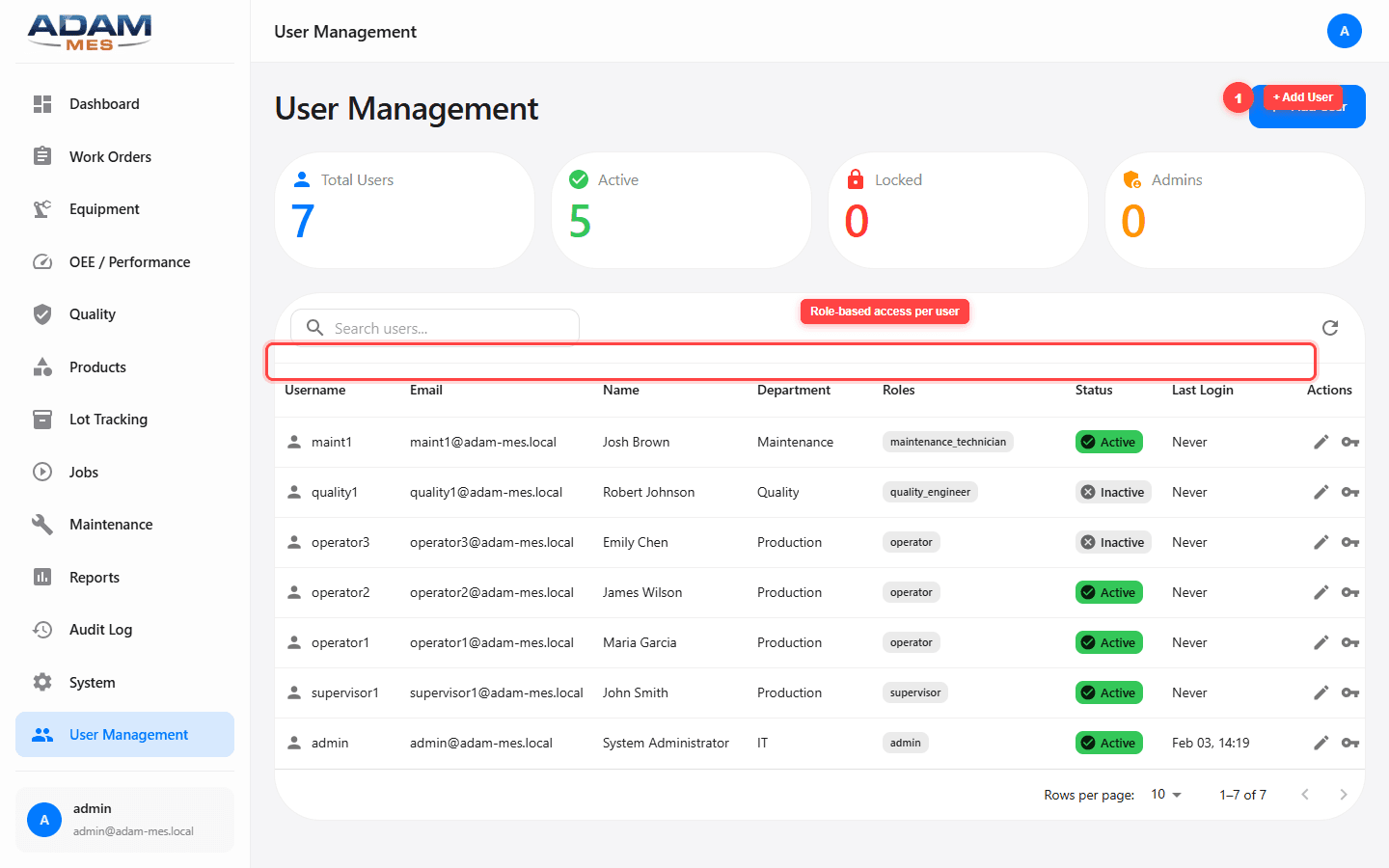
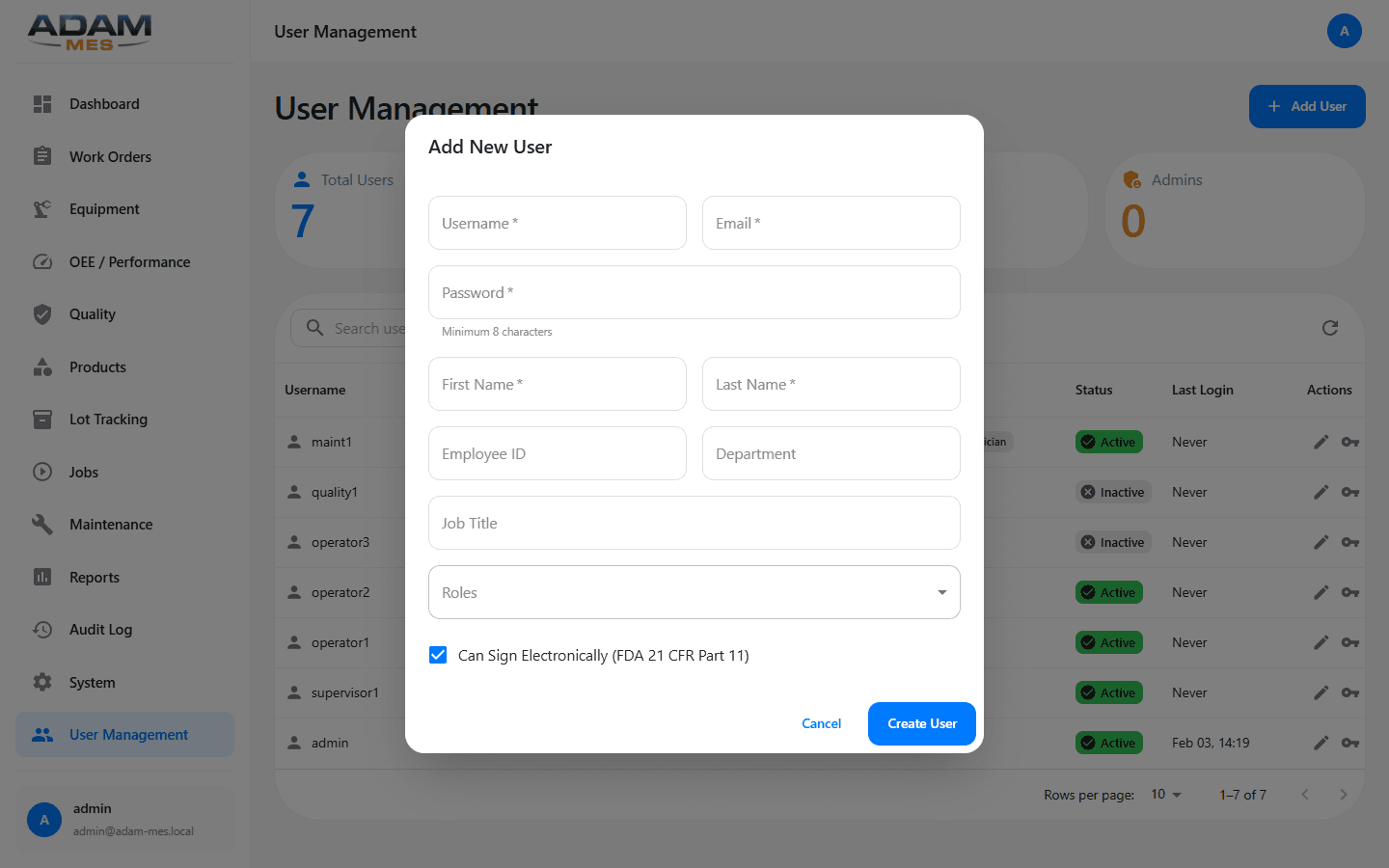
Navigate to User Management in the sidebar. KPI cards show Total Users, Active, Locked, and Admin counts. Click + Add User to create a new account: set the username, email, name, department (Production, Quality, Maintenance, IT), and assign a role. The user table shows everyone with their Role, Status (Active/Inactive), and Last Login.
Role-Based Permissions
Operators see jobs and production data. Supervisors manage work orders and job assignments. Quality engineers access inspections and NCRs. Maintenance technicians see work requests and equipment history. Administrators have full access including user management and system configuration. This segregation of duties isn't just good security — it's a regulatory requirement that ADAM MES handles out of the box.
Who this helps
IT administrators managing platform access. Compliance officers ensuring segregation of duties. Plant managers who need to onboard new team members quickly and know that each person sees exactly what they need to do their job effectively.
User Management with annotated Add User button and role-based access control.
Adding a new user with department, role, and permission assignment.
Ready to recover lost production?
Every day without visibility is output you're not capturing.
Everything you've seen runs on simulated data. We connect ADAM MES to your real equipment — PLCs, sensors, ERP — and deploy a system built around your specific products, lines, and workflows. Most customers see measurable ROI within the first quarter.